
How to Search and Filter Your Documents
On the Documents page, type part of a document's name in Search, or pick a status in the filter (Sent, Not sent, Completed, In progress, Expired). Every plan.
Prerequisites
- Plan: any plan - Free, Individual, or Agency
- Documents: at least one document on your Documents page
- Team documents: membership of a team (teams are part of the Agency Plan)
Where Do I Search and Filter?
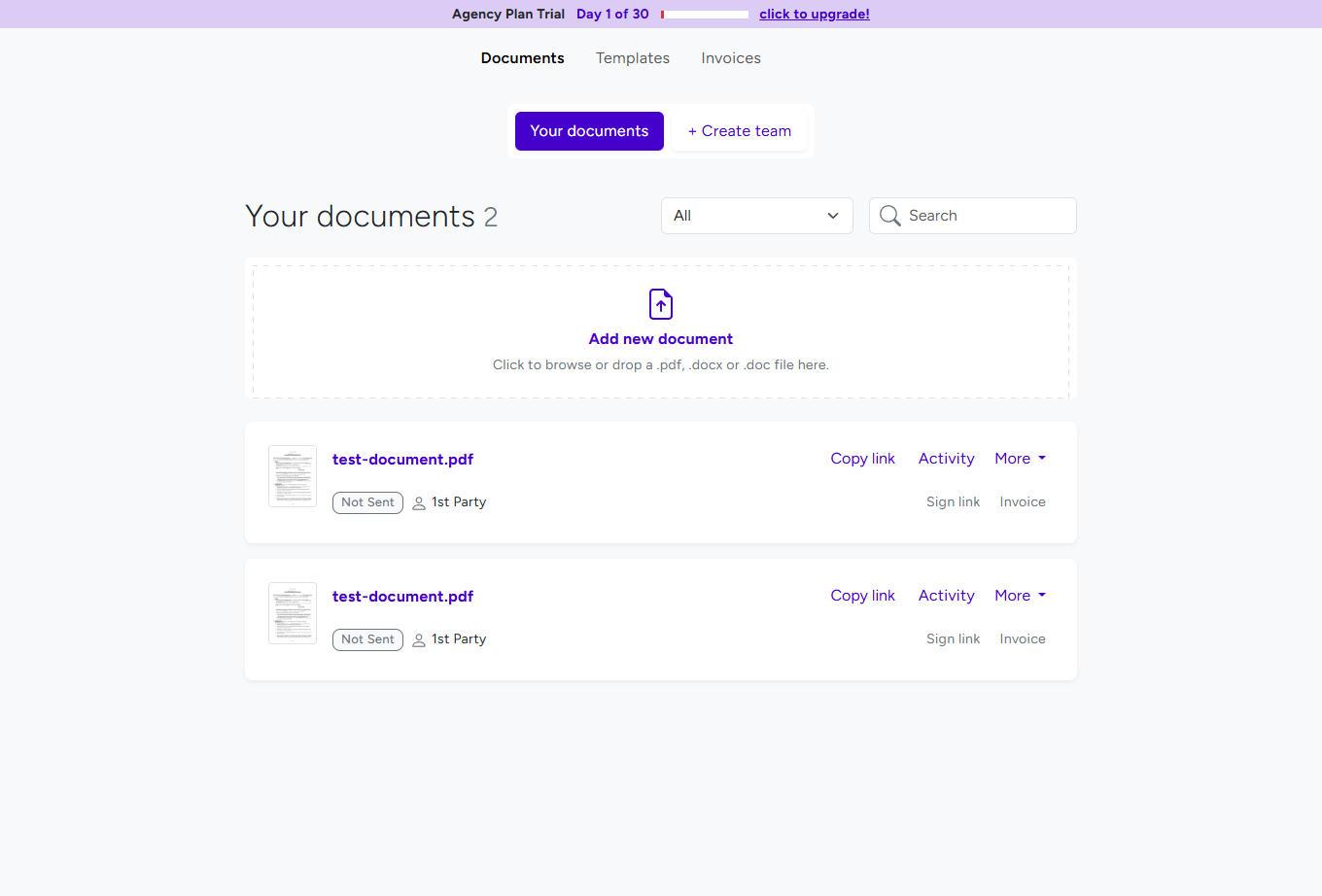
Click Documents in the top menu. Above the list you find:
- Tabs - Your documents for your own documents, and one <Team name> documents tab for each team you belong to
- The heading - "Your documents" or "Team documents" with the number of matching documents
- The status filter - set to All by default
- Search - a box that searches document names
The list shows 10 documents per page, newest first. Templates are listed on the Templates page, not here.
How Does Search Work?
- Click in Search.
- Type part of the document's name and press Enter.
- Search looks at document names only - not the text inside the file, field values, or signer names.
- Your text must appear in the name as you typed it: "service agreement" finds "Acme Service Agreement" but not "Agreement for Service".
- If nothing matches, you see "No results found matching" followed by your search.
Which Filters Are There?
| Filter | Shows documents that… |
|---|---|
| All | are in the list (default) |
| Sent | have at least one party who was sent the document and has not signed yet |
| Not sent | have not been sent to anyone yet |
| Completed | have been signed by every party |
| In progress | still wait for a signature and have not expired |
| Expired | have passed their expiration date |
Choosing a filter updates the list straight away. What each status means is explained in Document Status Explained, and expiration in Document Expiration.
Can I search and filter at the same time?
Use one at a time: choosing a filter clears the search text, and a new search resets the filter to All.
How Do I Find Team Documents?
- On Documents, click the team's tab (<Team name> documents).
- Search or filter as usual - the tab only lists that team's documents.
Your personal documents and each team's documents are listed separately. Teams are explained in How to Add and Manage Team Members (Agency Plan).
Tips for Finding Documents Later
- Give documents clear names - the file name becomes the document name, and you can rename a document by clicking its name in the editor.
- Include the client or project name, for example "Acme - Service Agreement".
- Use the In progress filter to see what is still waiting for signatures.
Troubleshooting
Search does not find a document I know exists
- Search only looks at names. Try a shorter part of the name, or set the filter to All and look through the list.
- Check that you are on the right tab - personal or team.
A filter shows no documents
- No document matches that status. Switch to All to see everything.
A completed document appears under Expired
- The Expired filter lists every document whose expiration date has passed, including some that were completed before it. Use Completed to see finished documents.
The count is higher than the documents I see
- The count covers all pages; the list shows 10 per page. Use the page links at the bottom.
Still stuck? Email support@breezedoc.com with the document name and the tab you are searching in.
Frequently Asked Questions
Can I search the text inside documents?
No. Search only matches document names.
Can I find documents by signer name or email?
No. Search and filters cover document names and statuses only.
Can I search personal and team documents together?
No. Each tab lists its own documents - search each tab separately.
Can I show more than 10 documents per page?
No. The list always shows 10 documents per page.
Need more help? Contact our support team at support@breezedoc.com - we are here to help!