
Document Expiration: Set, Change or End a Signing Deadline
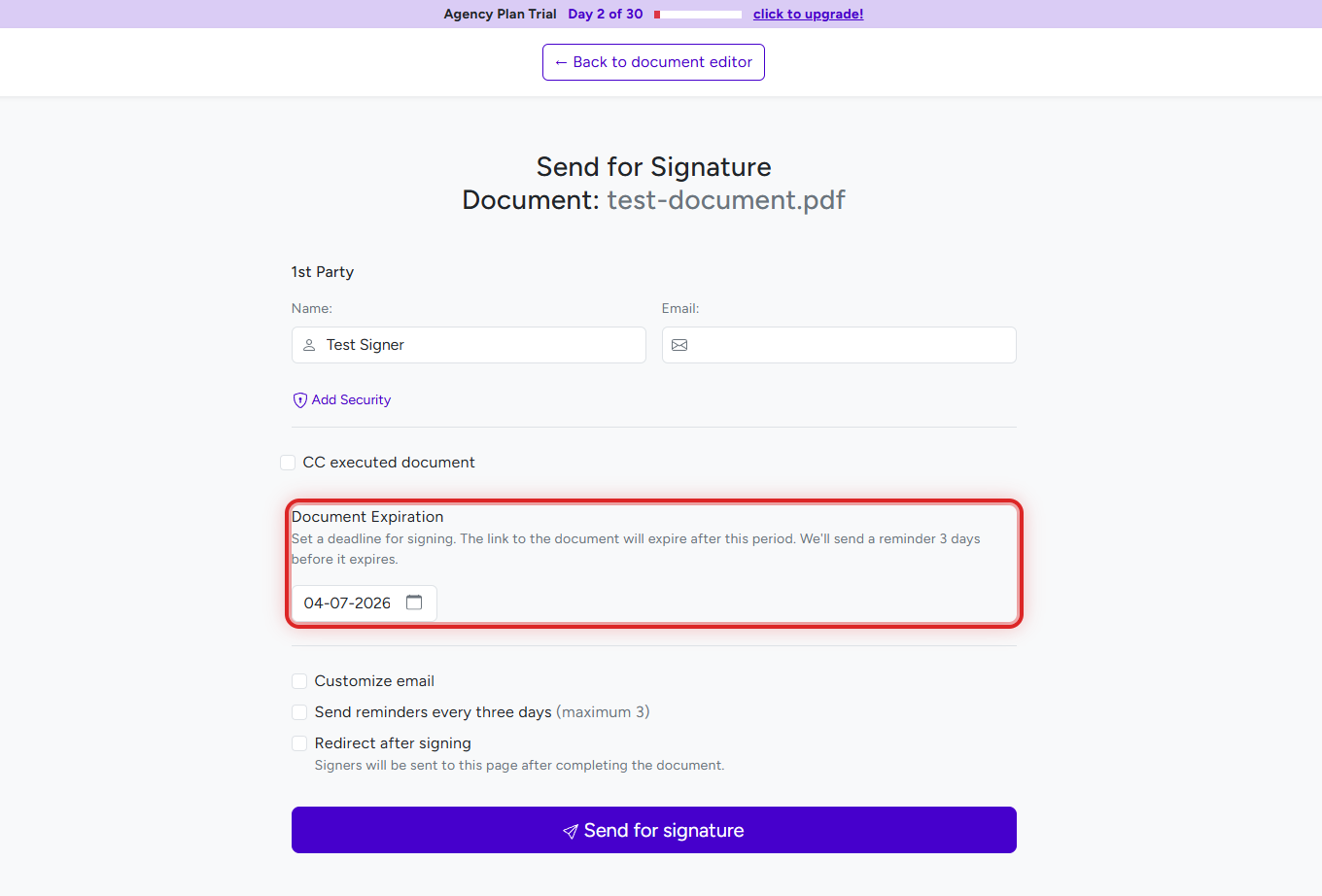
Every document you send has an expiration date, set under Document Expiration on the Send for Signature page (default 90 days). It is available on every plan.
Prerequisites
- Plan: any plan - Free, Individual, or Agency
- Document: a document with its parties and fields in place (see How to Send a Document for E-Signature in BreezeDoc)
- Team documents: the Owner or Sender role to send or expire a document
How Does Document Expiration Work?
- Always set - a document sent by email must have an expiration date. The default is 90 days from today.
- End of the day, UTC - the document expires at the end of the chosen day, in UTC time. You choose a date, not a time.
- One date per document - every party shares the same deadline.
- Warning email - parties who have not signed get one reminder about 3 days before the date.
- After the date - signing links show "Document Expired". Signatures already given are kept.
- Completed documents - once every party has signed, the expiration date no longer matters.
How Do I Set the Expiration Date?
- In the document editor, click Send to signers and choose Send via email.
- On the Send for Signature page, find Document Expiration ("Set a deadline for signing. The link to the document will expire after this period."). The date is filled in 90 days ahead.
- Keep the date or pick another one from the calendar.
- Finish the other options and click Send for signature.
If you choose Generate links instead and the document has no date yet, BreezeDoc sets one 90 days ahead. You can change it on the Sign links page.
How Do I Change or Extend the Expiration Date?
- On Documents, open More next to the document and click Edit.
- Click Send to signers and choose Generate links.
- On the Sign links page, next to Document expiration:, pick the new date and click Update.
This also works after the document has expired, as long as not every party has signed. BreezeDoc does not tell anyone about the new date - click Resend next to a party on Documents to email them the signing link again.
Changing the date does not change who is emailed next: on a document sent by email, later parties are still emailed in turn (see How Multi-Party Signing and Signing Order Work).
How Do I End Access Right Away?
- On Documents, open More next to the document and click Expire.
- In the Expire document? dialog, confirm. All parties lose access immediately and you see "Document expired".
Expire is not shown for documents that are already expired or completed. To reopen an expired document, set a new date as described above.
What Is the Expiration Warning Email?
About 3 days before the date, each party who was sent the document and has not signed gets one email with the subject "Reminder: a document is waiting for your signature". It says the document expires in 3 days, shows the exact expiry date and time in your account's time zone, and has a Sign document button. This warning is on every plan.
No warning is sent when:
- the date is less than 3 days away when you send,
- the party has not been sent the document yet (for example a later party waiting for its turn),
- the party has already signed, or the document is complete.
Repeated reminders every three days are a separate option on the Individual and Agency Plans - see Which Emails Does BreezeDoc Send? Notifications and Reminders.
What Happens When a Document Expires?
- Signers who open their link see "Document Expired", the date it expired, and "Contact" followed by your email address.
- Parties who already signed keep their signature and still see their confirmation page.
- On Documents you see "Document expired on" with the date and "You can clone it and resend it". Choose Expired in the filter to list expired documents.
- No email - BreezeDoc does not email you when a document expires.
To continue, extend the date, or clone the document and send the copy - see Document Cloning and Duplication.
Troubleshooting
The document expired earlier than I expected
- Documents expire at the end of the chosen day in UTC time. In New York that is 7:59 pm in summer and 6:59 pm in winter on that day. Pick the next day if signers need the whole day.
A signer did not get the 3-day warning
- Check the rules above: no warning when the date was less than 3 days away, or when the party had not been sent the document yet.
- Ask the signer to look in spam or junk, or click Resend next to them on Documents.
A signer sees "Document Expired"
- Set a later date on the Sign links page (see above), then click Resend next to the signer. Or clone the document and send the copy.
I cannot find Expire under More
- The document is already expired or completed, or your team role cannot expire documents (Editors and Viewers cannot).
Still stuck? Email support@breezedoc.com with the document name, the expiration date you set, and the signer's email address.
Frequently Asked Questions
Can I send a document without an expiration date?
No. Every document sent by email needs a date; it defaults to 90 days from today. You can pick a date further ahead.
Is document expiration available on the Free Plan?
Yes. Expiration, the Expire option, and the 3-day warning email work on every plan.
Can each party have a different expiration date?
No. There is one date per document, shared by all parties. For different deadlines, send separate documents.
Can I set an expiration time?
No, only a date. The document expires at the end of that day, UTC.
Need more help? Contact our support team at support@breezedoc.com - we are here to help!