
How to Sign a PDF Yourself, With or Without an Account
Need to sign a PDF yourself, with nobody else involved? BreezeDoc places your signature, name and date for you, and you download the signed copy. You can do it in your account, or at breezedoc.com/sign without an account.
Overview
- Plan: every plan, the Free Plan included. No account needed to start at breezedoc.com/sign.
- What you get: a signed PDF with an activity page at the end showing when it was viewed and signed.
- Who signs: only you. To get someone else's signature, send the document instead. See Create Your First Document.
How to Sign a Document in Your Account
- Go to Documents and upload your file.
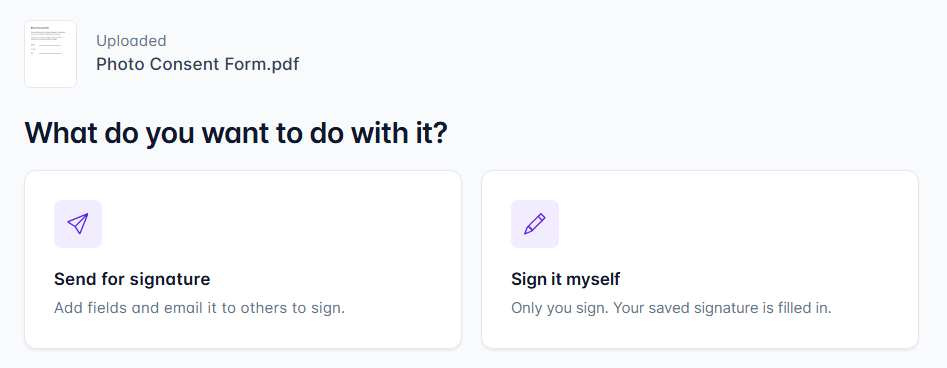
- BreezeDoc asks what you want to do with it. Click Sign it myself.
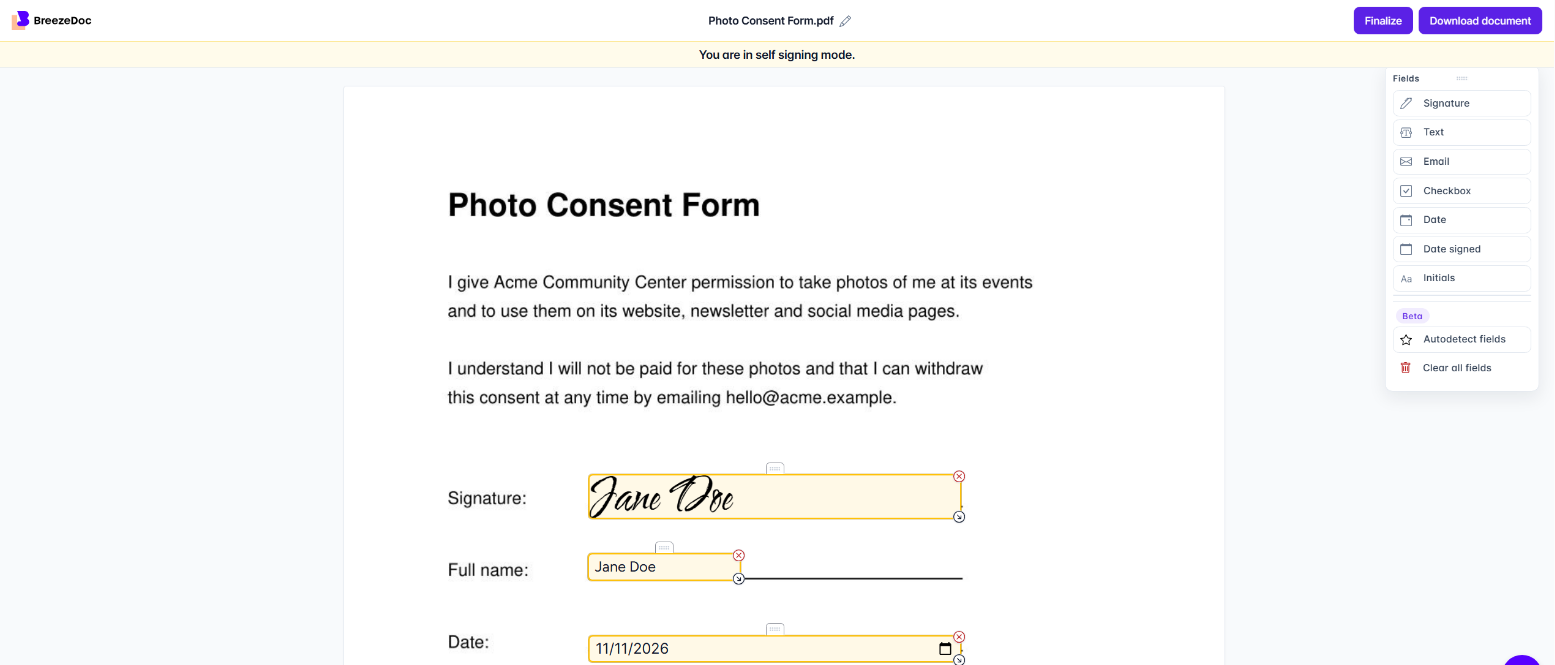
- The document opens in self-signing mode. BreezeDoc places your signature, name and date where they belong. Your saved signature and today's date are already filled in.
- Check each field. Drag a field to move it, or add more from the Fields panel.
- Click Finalize and confirm.
The document is now Completed. Download the signed PDF from Documents.
No saved signature yet? Click the signature field and add one. BreezeDoc keeps it for next time.
How to Sign a PDF Without an Account
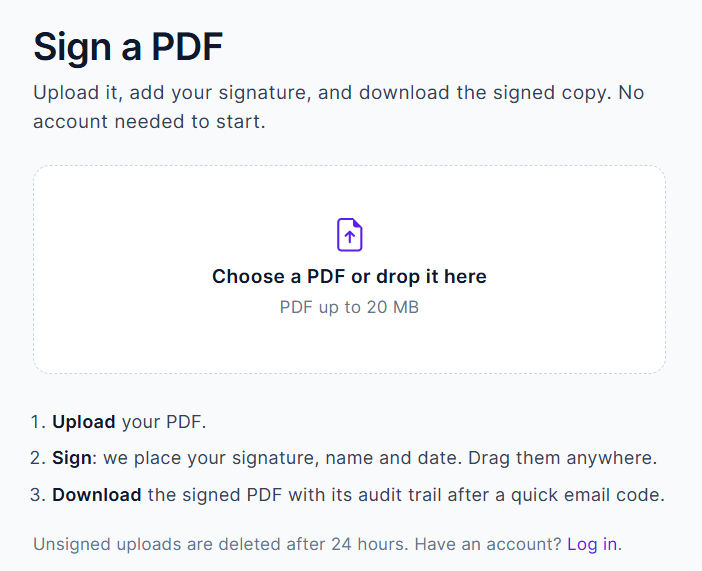
- Go to breezedoc.com/sign and choose your PDF, or drop it on the page.
- Add your signature: type, draw or upload it.
- BreezeDoc places your signature, name and date on the PDF. Drag them where you want them. Use + Signature, + Name and + Date at the top to add more.
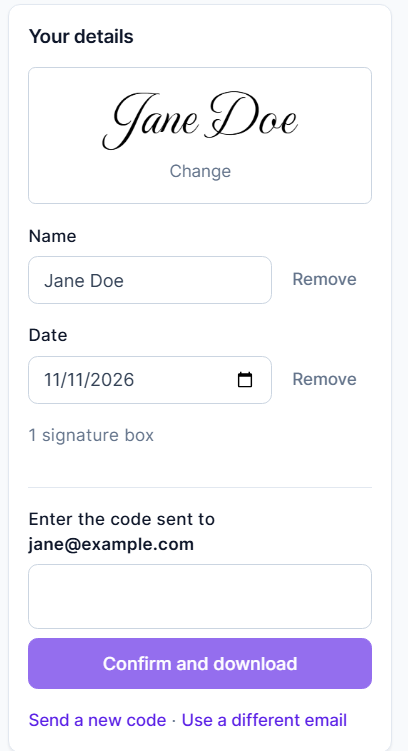
- Under Your details, check your name and the date. Click Remove next to anything you don't need.
- Type your email under Email for your signed copy and click Download signed PDF.
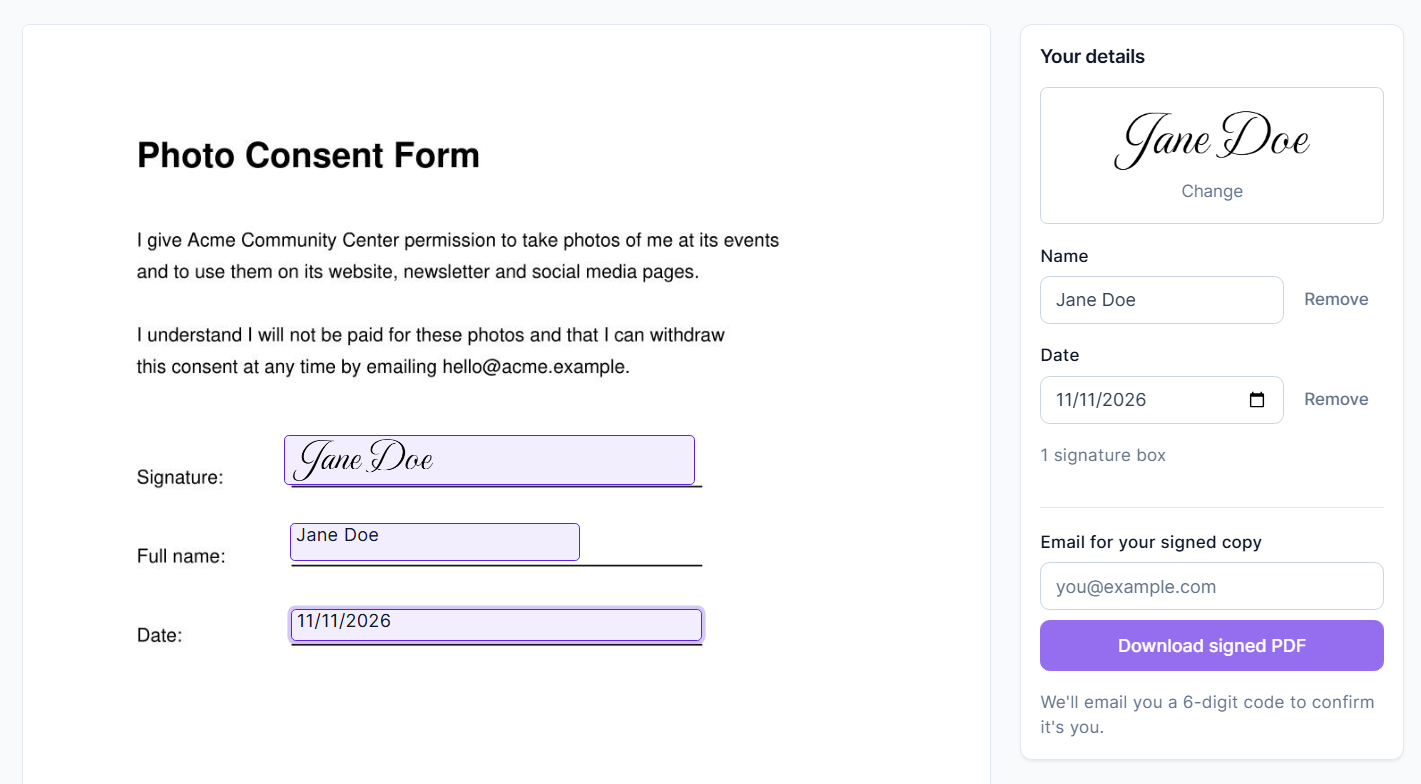
- BreezeDoc emails you a 6-digit code. Type it in and click Confirm and download.
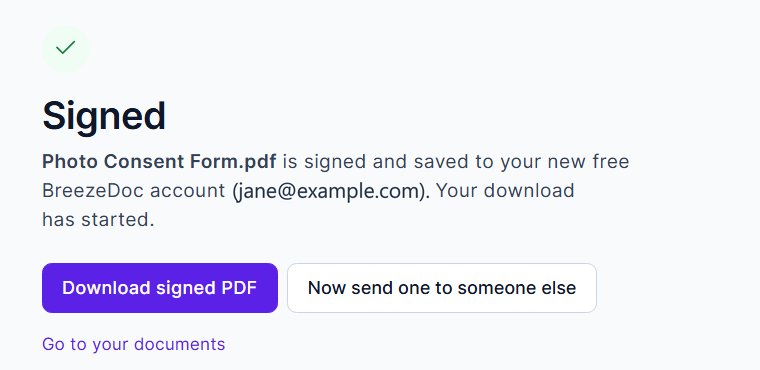
Your signed PDF downloads, and BreezeDoc emails you a copy.
What happens to my document?
- New to BreezeDoc: the code creates a Free account for that email and signs you in. Your signed PDF is saved there under Documents.
- Already have an account: the signed PDF is saved to your account and emailed to you. Log in to open it.
Troubleshooting
I don't see Sign it myself after uploading
- The choice only shows for a new document in your own documents. It doesn't show for templates or team documents. Upload the file from Documents outside a team.
The code didn't arrive
- Check your spam folder. Then click Send a new code, or Use a different email if you typed it wrong.
My PDF isn't accepted
- On breezedoc.com/sign, the file must be a PDF of 20 MB or less. Password-protected PDFs can't be signed. Remove the password and try again.
Still stuck? Email support@breezedoc.com with the name of your PDF.
Frequently Asked Questions
Do I need an account to sign a PDF?
No. Go to breezedoc.com/sign, sign your PDF and confirm your email with a 6-digit code. BreezeDoc then creates a Free account for you so your signed copy is saved.
How do I log in to my new account later?
Your account has no password yet. On the login page, click Forgot your password?, and BreezeDoc emails you a link to set one.
What happens to a PDF I upload but don't sign?
It is deleted after 24 hours.
Can I also get someone else to sign it?
Yes, but send it to them instead of signing it yourself. After signing at breezedoc.com/sign, click Now send one to someone else.
Need more help? Contact our support team at support@breezedoc.com - we are here to help!