
Creating and Using Templates in BreezeDoc
Create reusable BreezeDoc templates from your own files, start from the template Library, and turn any template into a new document ready to send in one click.
Overview
A template is a reusable document with its fields already placed. Each time you click Use template, BreezeDoc creates a new document from it, so you never have to place the same fields twice.
Prerequisites
- Plan: Any plan. The Free, Individual, and Agency Plans all include unlimited templates.
- Team templates: Agency Plan (teams are an Agency Plan feature).
- File: A PDF or Word (.doc, .docx) file up to 5 MB. Excel (.xls, .xlsx), JPG, and PNG files are also accepted.
Where Are My Templates?
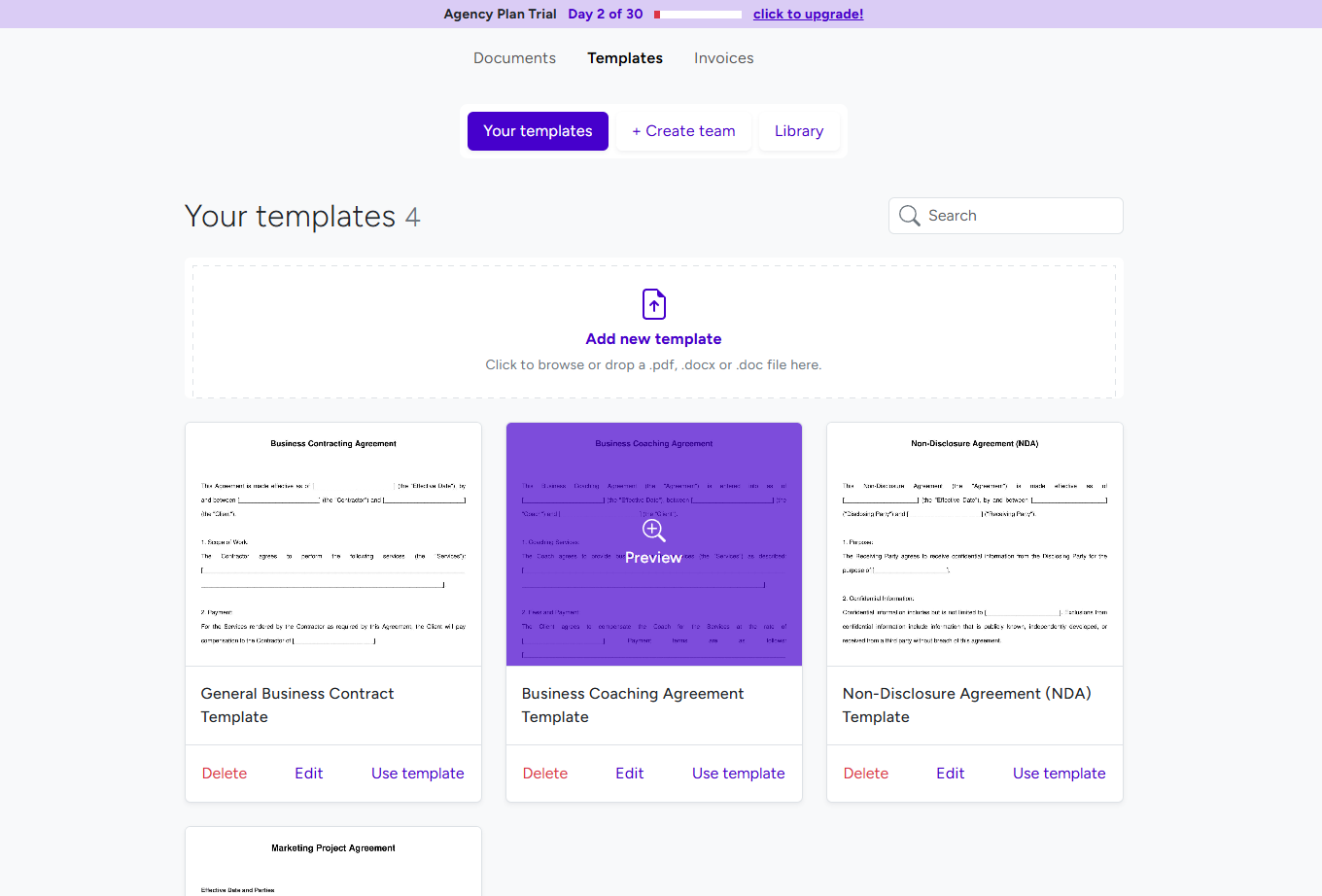
Click Templates in the top navigation. The Templates page has these tabs:
- Your templates: your personal templates.
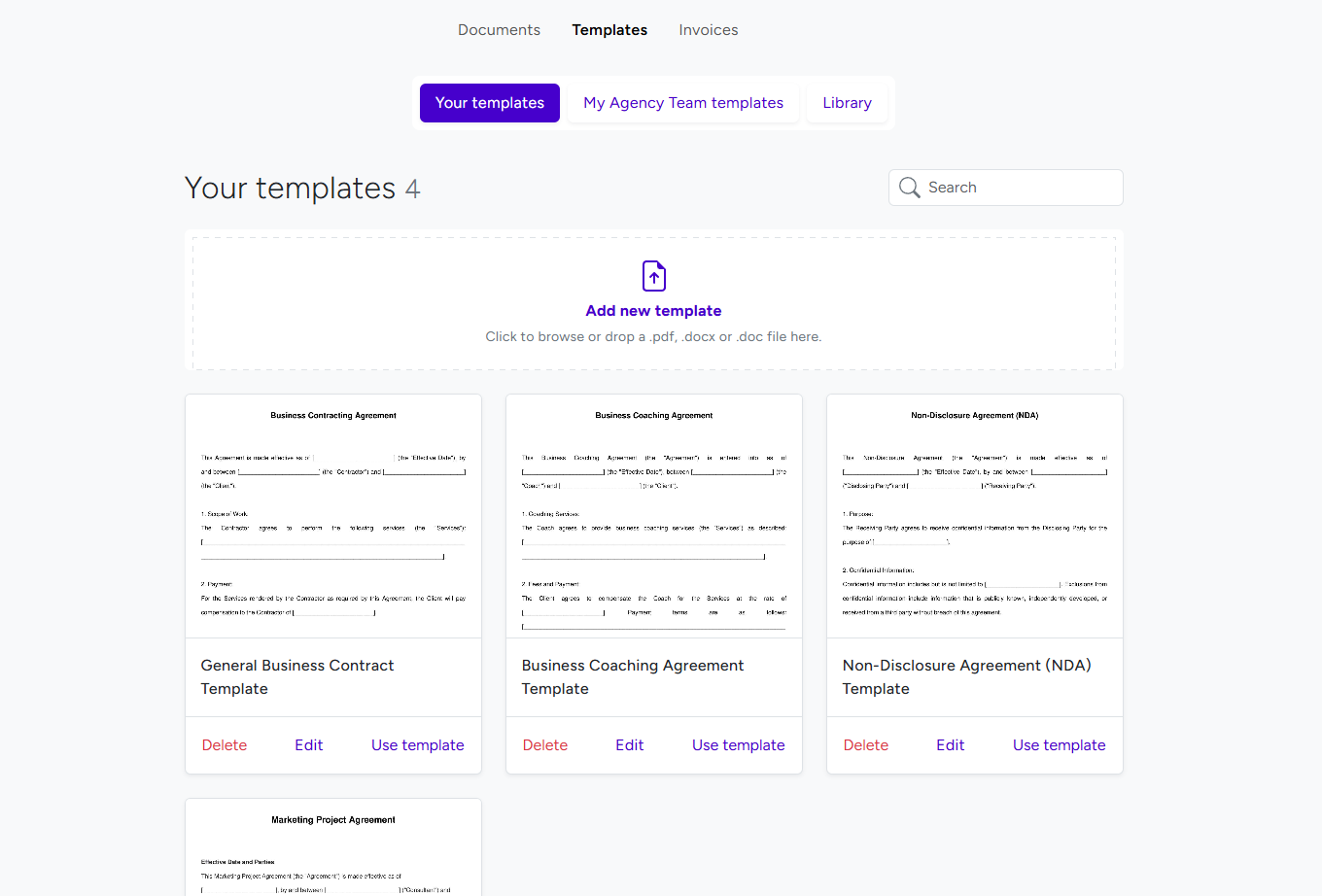
- [Team name] templates: one tab for each team you belong to (Agency Plan).
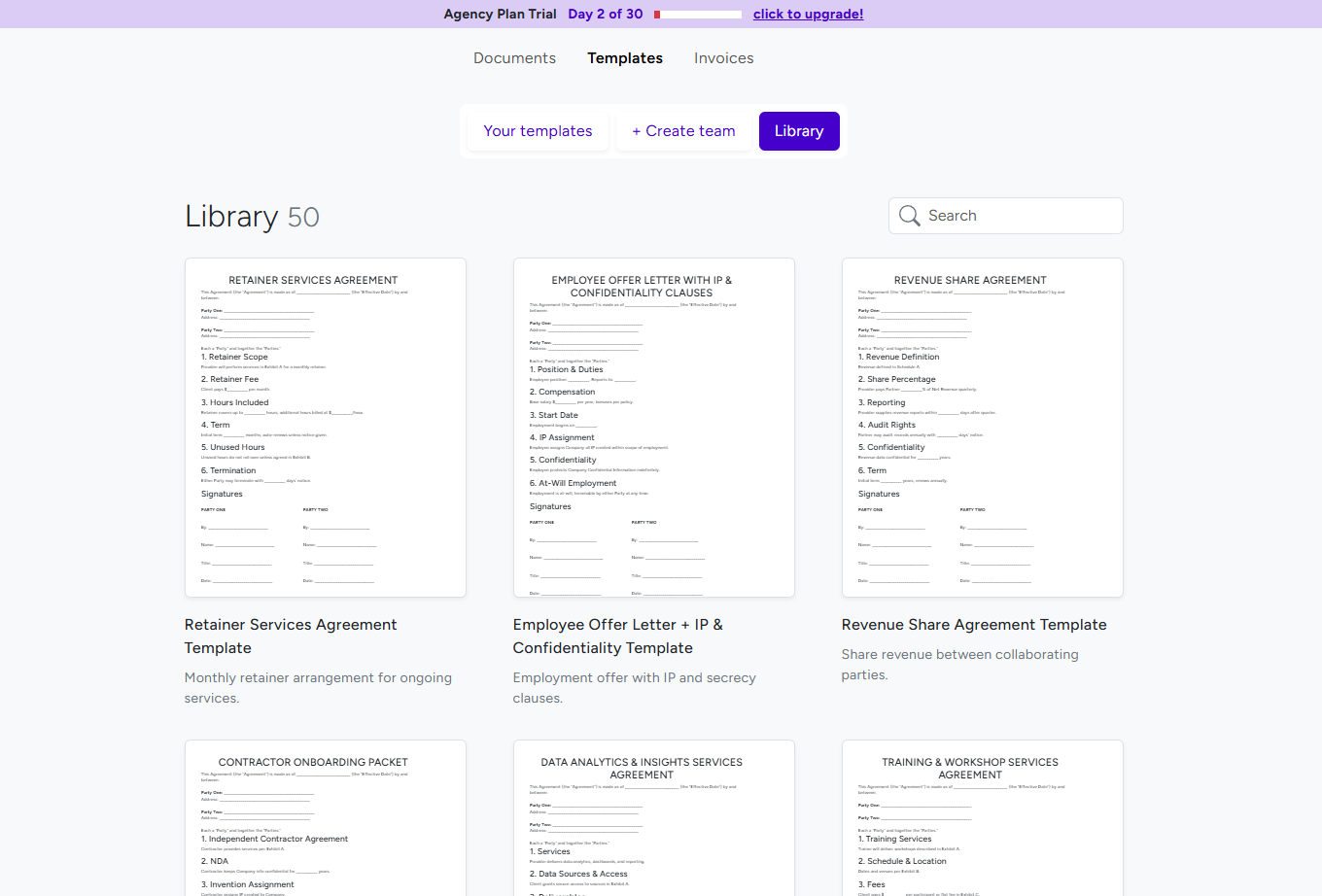
- Library: ready-made agreements you can start from.
Use the Search box to find a template by name. Click a template's thumbnail to preview it.
How Do I Create a Template?
- Go to Templates → Your templates. For a team template, open that team's tab instead.
- Under Add new template, click to browse for your file, or drag and drop it onto the box.
- The editor opens. Drag fields onto the pages. The field types are Signature, Text, Email, Checkbox, Date, Initials, and Dropdown - see How to Add Fields to a Document.
- Assign each field to a party. Parties are named 1st Party, 2nd Party, and so on. Click Add new party in the Parties panel if you need more signers.
- The editor saves your changes automatically. When your fields are in place, click Next Step.
- On the Template options page, you can turn on Customize email to set the email Subject and Message, and Redirect after signing to send signers to a web page when they finish. Both options are available on the Individual and Agency Plans (see Customizing Document Emails and How to Redirect Signers to Your Page After Signing).
- Click Save Template. You return to the Templates page.
Note: CC recipients and the Document Expiration date on the Template options page aren't copied into documents you create from the template. Set them each time you send.
Note: BreezeDoc doesn't have an option to save an existing document as a template. To reuse a document you've already set up, clone it from the Documents page. To create a template, upload the file on the Templates page and place its fields there.
How Do I Create a Document from a Template?
- Go to Templates.
- Find the template and click Use template. The button is also in the preview window.
- BreezeDoc creates a new document with the template's pages, fields, and parties, and opens it in the editor.
- Make any changes you need, then click Send to signers → Send via email.
- Enter each party's Name and Email, set the Document Expiration, and click Send for signature.
The new document appears on your Documents page with the same name as the template. It keeps the template's custom email and redirect URL, if you set them. Documents created from a team template appear on that team's Documents tab.
How Do I Use a Library Template?
The Library tab has ready-made agreements you can customize and send. More in Template Library and Team Templates.
- Go to Templates → Library. Use Search to find a template by name.
- Click a template to open the Template preview, then click Use template.
- Edit the agreement's text if you want, then click Continue and add fields.
- BreezeDoc creates a new document and opens it in the editor. Add the fields your signers need, then send it.
Note: A Library template becomes a regular document on your Documents page. It isn't added to Your templates.
How Do I Edit or Delete a Template?
Edit a template
- Go to Templates and click Edit on the template.
- Change fields or parties. To rename the template, click its title at the top of the editor, type the new name, and click OK.
- Changes save automatically. To change the email or redirect settings, click Next Step, update the Template options, and click Save Template.
Important: Editing a template only affects documents you create from it afterward. Documents you already created don't change.
Delete a template
- Go to Templates and click Delete on the template.
- Click OK when asked "Are you sure you want to delete this template?"
The template is removed from your list and can't be restored from your account. Documents you already created from it aren't affected.
How Do Team Templates Work? (Agency Plan)
Each team has its own [Team name] templates tab on the Templates page. To add a team template, open the team's tab and upload the file under Add new team template. There's no separate sharing step. A template added on a team's tab belongs to that team.
What each team role can do with team templates:
- Add team templates: Owner, Editor
- Edit team templates: Owner, Editor, Sender
- Delete team templates: Owner, Sender
All role permissions: Team Roles and Permissions.
Tips for Better Templates
- Rename parties by role. In the editor's Parties panel, click a party, click it again, type a name such as "Client" or "Tenant", and click Save. You'll enter each signer's real name and email when you send.
- Use descriptive template names, such as "Lease Agreement - Standard", so templates are easy to find with Search.
- Update the template, not each document. When your wording or fields change, edit the template so every new document starts from the latest version.
Troubleshooting
I can't find a "Save as Template" option
- BreezeDoc doesn't have an option to turn an existing document into a template.
- To reuse a document you've already set up, go to Documents, click More next to it (Actions on a phone), and choose Clone. The copy keeps all pages and fields.
- To build a reusable template, upload the same file under Templates → Add new template and place the fields there.
I can't find my template
- Check the right tab. Personal templates are under Your templates. Team templates are under the team's tab.
- Use the Search box, which matches template names.
- Documents created from Library templates are on the Documents page, not under Your templates.
CC recipients or the expiration date didn't carry over
- CC recipients aren't saved with templates, and a template's expiration date isn't copied into new documents.
- Add CC recipients and set the Document Expiration each time you send a document created from a template.
I can't add a template to my team
- Teams require the Agency Plan.
- Only the Owner and Editor roles can add team templates. If you see "You do not have permission to upload documents in this team.", ask your team owner to change your role.
Still stuck? Email support@breezedoc.com with the template name, the tab you are on (Your templates, a team tab, or Library), and any message you see.
Frequently Asked Questions
How many templates can I create?
Unlimited, on every plan: Free, Individual, and Agency.
If I edit a template, do documents I already created change?
No. Changes only apply to documents you create from the template afterward.
What happens to my documents if I delete a template?
Nothing. Documents you created from the template stay on your Documents page.
Can I download or duplicate a template?
No. Templates can't be downloaded or duplicated. To make a variation, upload the file again as a new template. To reuse a single document, clone it.
Need more help? Contact our support team – we are here to help!