
How to Add CC Recipients and Who Gets Notified
Add CC recipients on BreezeDoc's Send for Signature page to email people a copy when you send a document and the completed PDF when everyone has signed.
What Are CC Recipients?
CC recipients are people who get copies of a document but do not sign it. They stay informed without any action on their part.
- No signing - CCs never get a signing link or fields to fill in
- Two emails - one when you send the document and one when it is completed, each with the PDF attached
- Any number of CCs - there is no limit per document
- All plans - available on the Free, Individual, and Agency Plans
Prerequisites
- Plan: Any plan (Free, Individual, or Agency)
- Document: A document with its fields placed, ready to send
- CC details: A name and an email address for each CC recipient
How to Add CC Recipients
Adding CCs When Sending a Document
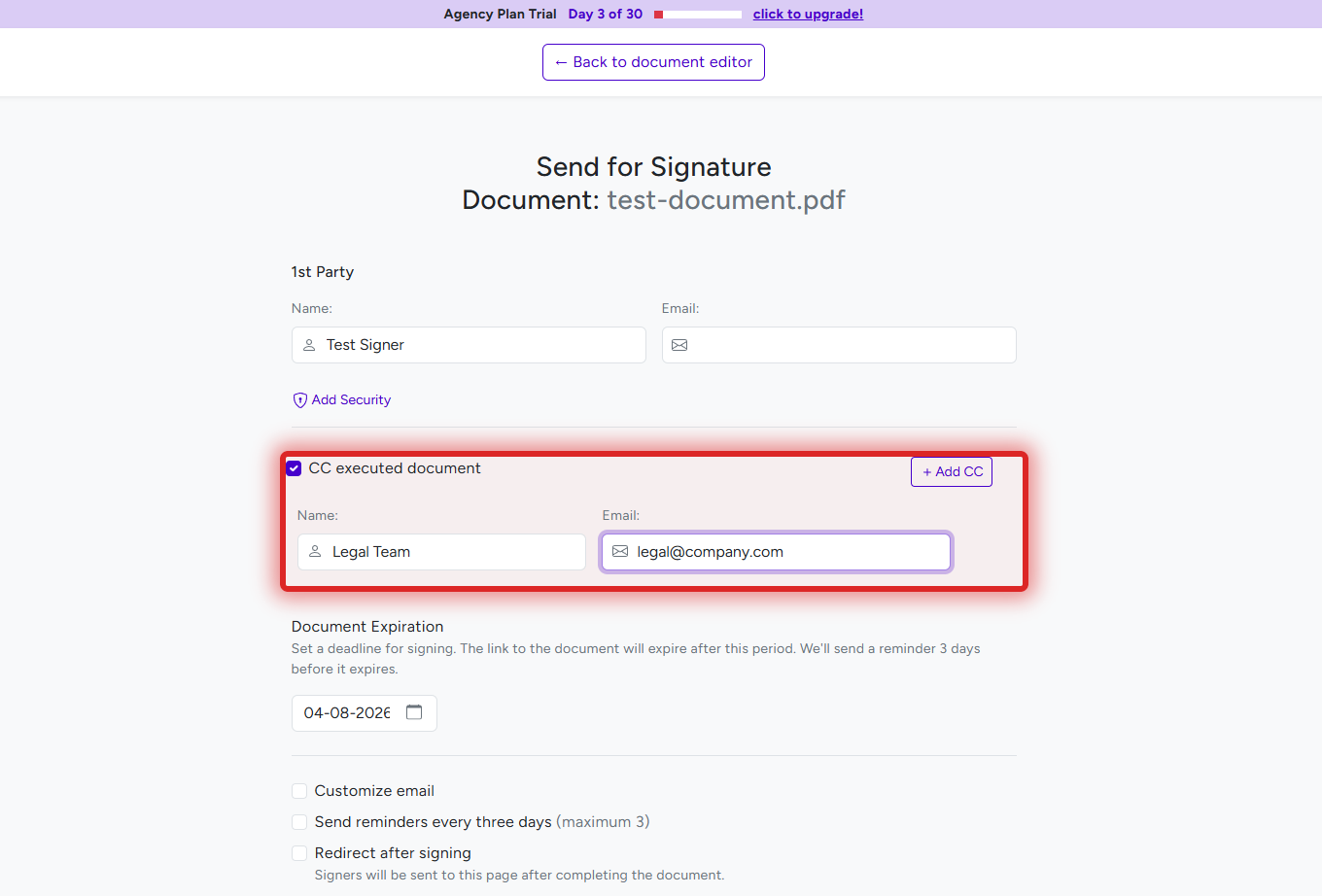
- Open your document and continue to the Send for Signature page (see How to Send a Document for E-Signature in BreezeDoc).
- Tick CC executed document.
- Enter the CC recipient's Name: and Email: (both are required).
- Click Add CC for each additional CC recipient.
- Fill in the rest of the page (signers, subject, message) and click Send for signature.
Editing the CC List Before Sending
- Add a row: click Add CC.
- Remove a row: click the X next to it. The X appears when there is more than one row.
- Remove all CCs: untick CC executed document.
Note: CC recipients belong to each document you send. Templates do not keep CC recipients - add them when you send a document created from a template. Cloning a document does not copy its CC recipients either.
What CC Recipients Receive
When You Send the Document
All CC recipients get one email with the subject You've been CC'd on "Document title" from Your Name, with the document PDF attached as it was when you sent it.
Important: This email is addressed to all CC recipients together, so each CC can see the other CCs' email addresses. If CC recipients should not see each other, send them separate documents.
When the Document Is Completed
When the last recipient signs, each CC recipient gets their own email with the subject Completed: Your copy of "Document title". It has one attachment: the completed PDF, with the activity log added at the end (see How to Track Document Activity and Download the Audit Log).
Common Uses for CC Recipients
- Legal and compliance: keep legal counsel or compliance staff informed of signed contracts.
- Management: give managers visibility of agreements they do not need to sign.
- Record keeping: send completed copies to accounting, HR, or an administrator for filing.
- Clients and partners: send a copy to people who are involved but are not signers.
Best Practices
- Use a CC only when the person does not need to sign - anyone who must sign or fill in fields should be added as a recipient.
- Double-check email addresses - CCs receive the document PDF right away.
- Remember CCs see each other on the first email.
- Tell CCs what to expect - use the message field to explain why they are receiving the document.
Limitations
- No signing link: CCs cannot open the live document; they only receive PDFs by email.
- No activity tracking: CC emails are not recorded on the document's Activity page.
- No reminders: reminder emails go only to recipients who still need to sign.
- Not saved with templates or clones: add CCs each time you send.
CC Recipients vs Signers
| Feature | Signers (recipients) | CC recipients |
|---|---|---|
| Action required | Yes - sign and fill in fields | No |
| Signing link | Yes | No |
| Emails | Signing email, reminders, completion | When sent and when completed |
| PDF attached | On completion | When sent and on completion |
| Activity tracking | Sent, Viewed, Signed | Not tracked |
| Reminders | Individual and Agency Plans | None |
Troubleshooting
A CC recipient did not receive the first email
- Check the CC's email address on the document.
- Ask them to check their spam or junk folder.
A CC recipient did not receive the completed copy
- The completed copy is sent only when every recipient has signed - check the document's Activity page.
- Ask the CC to check spam, and whether their email server blocks large attachments.
A CC recipient needs to sign
- CC recipients cannot sign. Clone the document (Documents → More → Clone, see Document Cloning), add the person as a recipient with their own fields, and send it again.
I added CCs to a template but they were not used
- Templates do not keep CC recipients. Add the CCs on the Send for Signature page each time you send a document created from the template.
Still stuck? Email support@breezedoc.com.
Frequently Asked Questions
How many CC recipients can I add to a document?
There is no limit. Click Add CC for each one.
Do CC recipients count toward my monthly document limit?
No. Your plan counts documents sent each month, and a document counts once no matter how many CCs it has.
Can CC recipients see each other?
Yes, on the first email: it is sent to all CC recipients together. The completed copy is sent to each CC separately.
Do CC recipients get the document before it is completed?
Yes. The first email has the document PDF attached as it was when you sent it. The completed PDF follows when everyone has signed.
Do CC recipients receive reminder emails?
No. Reminders (Individual and Agency Plans) go only to recipients who still need to sign.
Need more help? Contact our support team at support@breezedoc.com - we are here to help!