
How to Add Fields to a Document
To add a field, drag it from the Fields panel onto the page in the document editor. Each field belongs to the party you selected. All eight types are on every plan. To place them all at once, use Autodetect fields.
Prerequisites
- Plan: any plan - Free, Individual, Agency, or Pro
- Document: a file uploaded on Documents (see Create Your First Document: Upload a File or Use a Template) and open in the editor
- Parties: at least one party in the Parties panel
Which Field Types Can I Add?

The Fields panel offers eight types, on every plan:
- Signature - the signer types, draws, or uploads a signature
- Text - any typed answer, such as a name or address
- Email - an email address, checked for a valid format when the field is required
- Checkbox - a tick box for agreements and yes/no choices
- Date - a date the signer picks from a calendar, such as a start date. You can also fill it in before sending
- Date signed - filled in automatically with the day that person signs, in your date format
- Initials - initials, typed, drawn, or uploaded like a signature
- Dropdown - one choice from a list you set up
Default sizes, settings, and what each field looks like to the signer are in the Field Types Reference Guide.
How Do I Add a Field?
- In the Parties panel, select the party who should fill in the field.
- Drag a field type from the Fields panel and drop it on the page where it belongs.
- Click the field to open its settings - for example Required, Label, Pre-fill, or a dropdown's Options.
- Repeat for every field and every party.
The field takes the colour of its party, so you can see at a glance who fills in what. BreezeDoc saves your changes automatically - "Saving..." appears at the top while it works.
How do I give a field to a different party?

A field always belongs to the party that was selected when you added it. To place fields for someone else, select that party first (or click Add new party). To move a field to another party, delete it and add it again with the right party selected. More on parties and signing order: How Multi-Party Signing and Signing Order Work.
Moving, Resizing, and Deleting Fields
- Move - drag the field, or select it and use the arrow keys for small steps.
- Resize - drag the handle on the field's corner. Signature and Initials fields remember the last size you used.
- Duplicate - select the field and press Ctrl+D (Cmd+D on a Mac).
- Delete - click the red x on the field's top-right corner.
- Deselect - press Esc.
Fields of a party that has already signed cannot be moved or deleted.
How do I remove all fields at once?
Click Clear all fields at the bottom of the Fields panel and confirm. This deletes every field on the document.
How Does Autodetect Fields Work?
Why add fields one by one? Autodetect fields reads your document and places the fields for you in a few seconds. It names each field after the text next to it, such as Company name or Phone, and gives email and date lines the right field type.
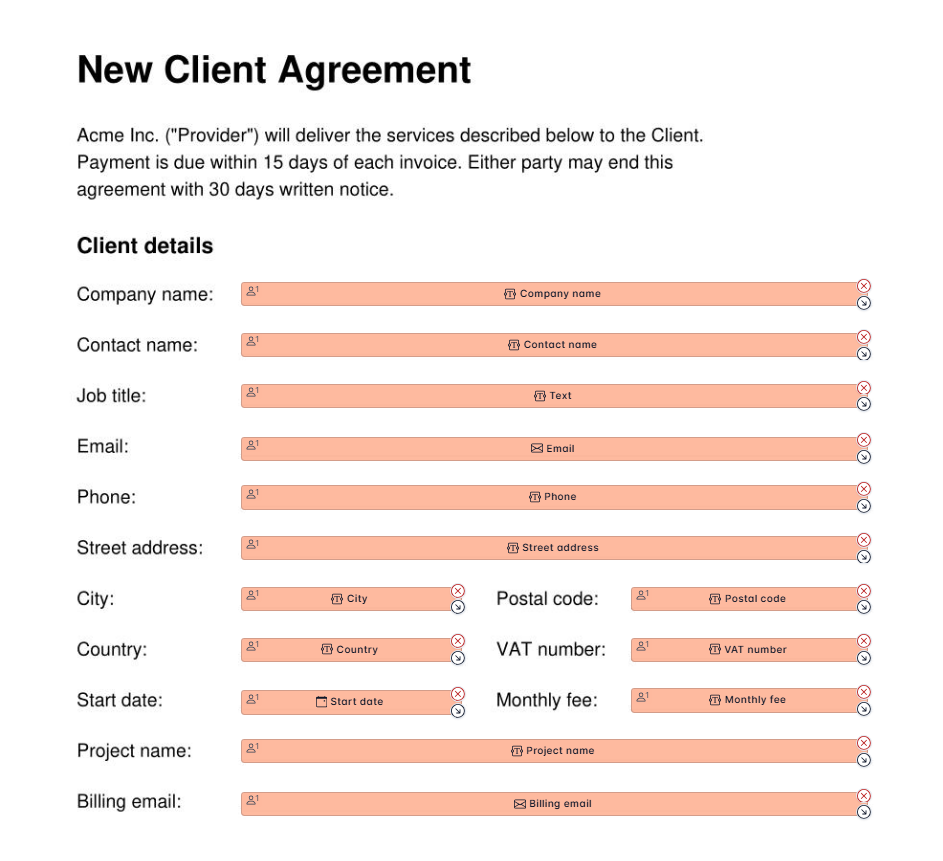
- Upload your document and open it in the editor.
- Click Autodetect fields in the Fields panel.
- Wait a few seconds until the panel shows Fields detected.
- Add any other fields you need, such as signatures, and set who fills in each one.
Run Autodetect fields first, then add your own fields. Running it again replaces the fields on the page, including ones you placed yourself.
Can I Change Fields After Sending?
Yes, until every party has signed. On Documents, open More next to the document and click Edit. Fields of parties who have already signed stay locked. Once the document is complete, it can no longer be edited - clone it to start a new copy.
Troubleshooting
The field does not appear when I drop it
- Drop the field inside a page of the document - fields dropped outside the page are not added.
A signer does not see a field
- The field belongs to another party. Check its colour against the party in the Parties panel, then delete it and add it again with the right party selected.
A signer cannot finish signing
- They see "Please fill all marked fields before finalize." until every required field is filled. Turn off Required for fields that are optional. See How to Sign a Document You Received in BreezeDoc.
I cannot find Autodetect fields
- It is shown on desktop-sized screens only. Widen the browser window or use a computer.
Autodetect fields says no fields were found
- Autodetect reads the text in your PDF. A scanned page or photo has no text to read. Upload a PDF exported from Word or Google Docs, or add the fields by hand.
Still stuck? Email support@breezedoc.com with the document name and the field type you are working with.
Frequently Asked Questions
How many fields can I add to a document?
As many as you need - BreezeDoc does not limit the number of fields, on any plan.
Can I reuse a field layout?
Yes, with a template. Upload the file on Templates, place the fields once, and click Use template whenever you need a new copy. See Creating and Using Templates.
What happens if a required field is left empty?
The signer cannot finish: BreezeDoc asks them to fill all marked fields before they finalize.
Which date field fills in by itself?
Date signed. It is filled in automatically with the day that person signs, in the date format set in your account. A Date field is one the signer picks, unless you fill it in before sending.
Need more help? Contact our support team at support@breezedoc.com - we are here to help!