
How to Use Your Own Domain for Signing Links (Custom Domain)
Pro users can open signing links on their own domain, like sign.yourcompany.com, instead of breezedoc.com. Set it up under Settings → Custom domain in 2 minutes.
Overview
With a custom domain, the Sign document link in your emails and the page where people sign use your address instead of breezedoc.com. Your main website is not touched: you only add one DNS record for a subdomain such as sign.yourcompany.com.
- Plan: Pro. If you bought Agency before November 4, 2026, your plan includes it too. See How to Choose the Right BreezeDoc Plan.
- Access to your domain's DNS: the place where your domain is managed (for example Cloudflare or GoDaddy), or the person who runs your website.
- A subdomain: BreezeDoc needs a subdomain like sign.yourcompany.com. Your main domain on its own (yourcompany.com) is not accepted.
How to Set Up a Custom Domain
Step 1: Enter your subdomain
- Go to Settings → Custom domain.
- Type your subdomain in Your custom domain, for example sign.yourcompany.com.
- Click Next.
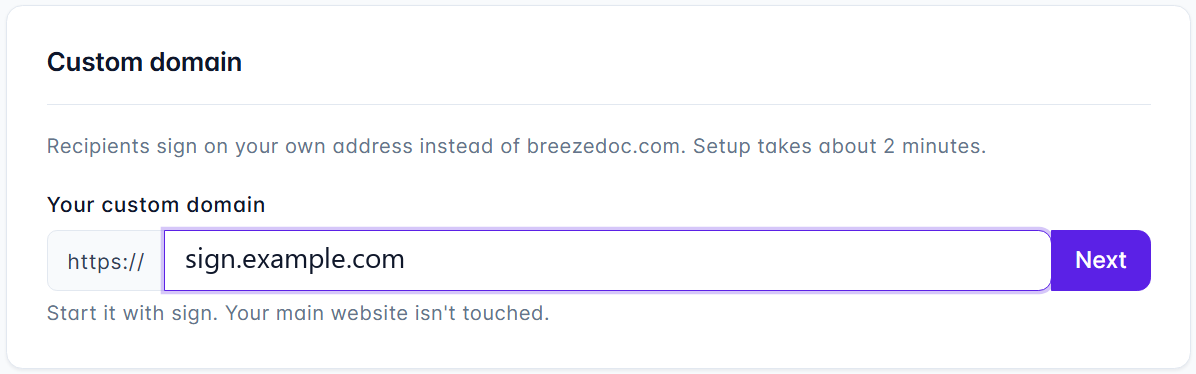
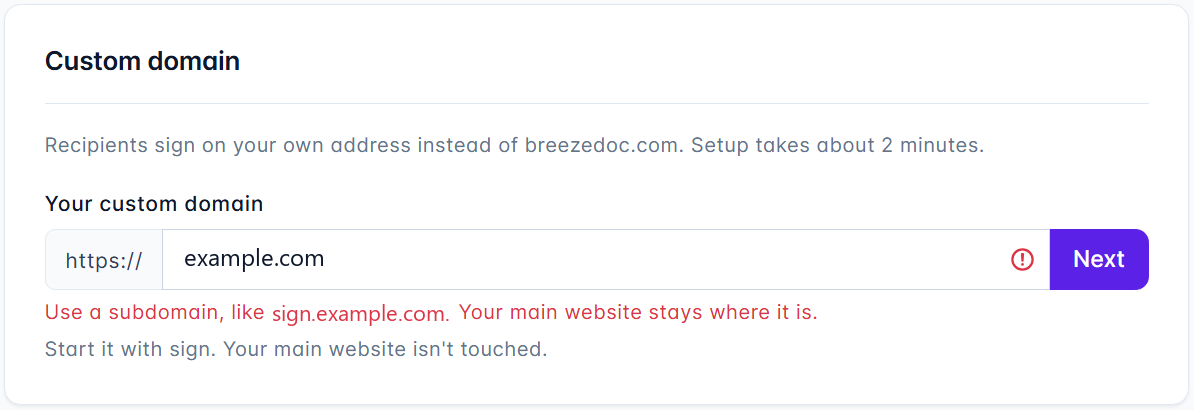
If you type only your main domain, BreezeDoc shows Use a subdomain, like sign.yourcompany.com. Your main website stays where it is. Add sign. in front and click Next again.
Step 2: Add the DNS record
BreezeDoc shows Almost there, tells you where your domain is managed and gives you the exact record to add. Use the Copy buttons so nothing is mistyped.
- Log in where your domain is managed and open its DNS records. BreezeDoc shows a button to open it, for example Open Cloudflare.
- Add a new record exactly as shown:
- Type: CNAME
- Name: only the first part of your subdomain, for example sign (not sign.yourcompany.com)
- Target: domains.breezedoc.com
- On Cloudflare, click the orange cloud so it turns grey (DNS only).
- Save the record.
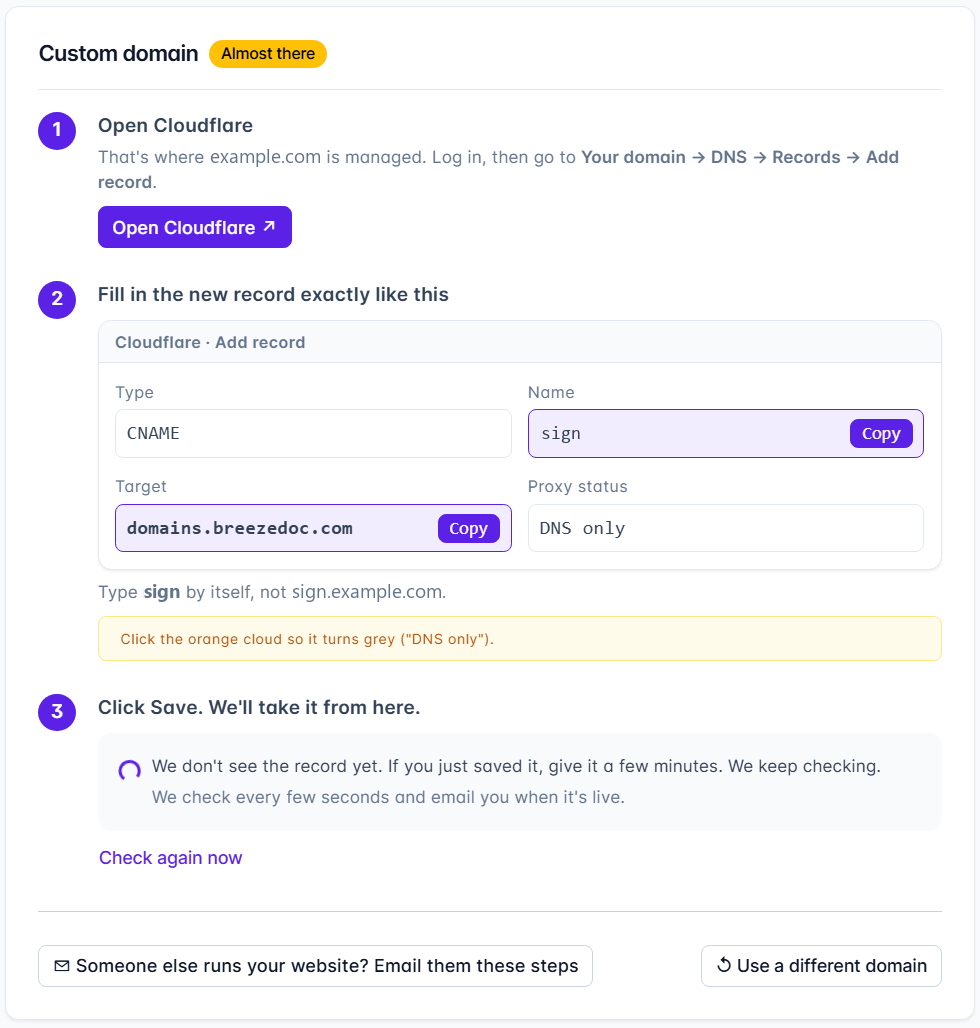
Someone else runs your website? Click Someone else runs your website? Email them these steps to send them the same steps.
Step 3: Wait for Live
BreezeDoc checks every few seconds and emails you when your domain is live. You can also click Check again now. When it is ready, the badge turns to Live.
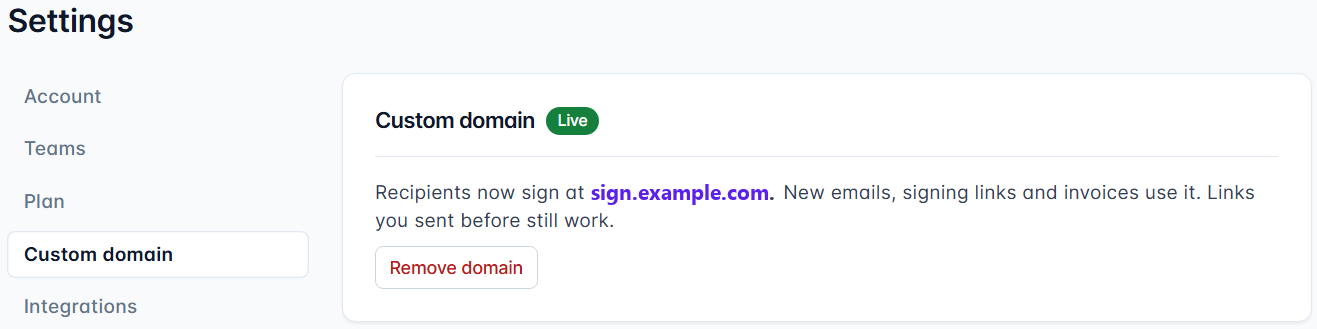
From then on, new emails, signing links and invoices use your domain. Links you sent before still work.
How to Change or Remove Your Custom Domain
- Before it is live: click Use a different domain on the Almost there screen.
- After it is live: click Remove domain. New links go back to breezedoc.com.
Important: when you remove a custom domain, links you already sent on that domain stop working. Also delete the DNS record you added, so no other account can connect your subdomain.
Troubleshooting
I see "Use a subdomain"
- You entered your main domain. Enter a subdomain such as sign.yourcompany.com instead.
My domain stays on "Almost there"
- DNS changes can take a few minutes. Click Check again now.
- Check the record: Name is only the first part (for example sign) and Target is domains.breezedoc.com.
- On Cloudflare, make sure the cloud is grey (DNS only), not orange.
I see "Upgrade to Pro" instead of the setup
- Your plan does not include a custom domain. Click Upgrade to Pro to see the options.
Still stuck? Email support@breezedoc.com with your subdomain and a screenshot of the Custom domain page.
Frequently Asked Questions
Does a custom domain change my website?
No. You only add one record for a subdomain like sign.yourcompany.com. Your main website stays exactly as it is.
Which plans include a custom domain?
Pro, plus Agency plans bought before November 4, 2026. Free, Individual and the current Agency plan do not include it.
Do links I sent before still work?
Yes. Links sent on breezedoc.com keep working after you connect your domain. If you later remove your domain, links sent on it stop working.
How long does setup take?
About 2 minutes to add the record. BreezeDoc emails you as soon as your domain is live.
Need more help? Contact our support team at support@breezedoc.com - we are here to help!