
How to Create a Public Signing Link Anyone Can Sign
Turn any template into one link anyone can open and sign. Put it on your website or in an email, and every signer gets their own copy. It works well for waivers, NDAs and intake forms.
Overview
- A template with a signature field: the link signs a copy of a template. See How to Create and Use Templates.
- Links per plan: how many links can be switched on at the same time. Free: 1. Individual: 10. Agency and Pro: unlimited.
- Where: Signing links in the top menu.
How to Create a Public Signing Link
- Click Signing links in the top menu.
- Next to the template you want, click Set up link. No template yet? Upload a file, or click Make it a template next to a document you already sent.
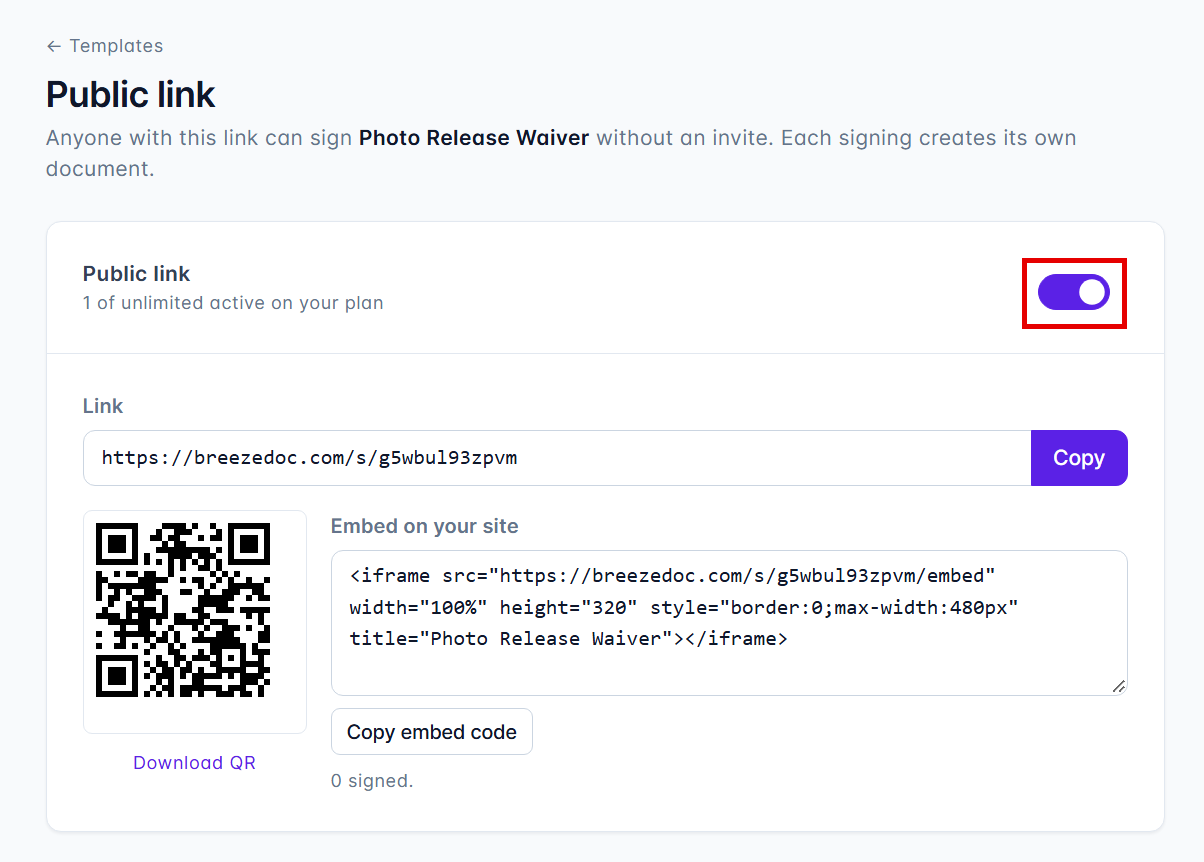
- Turn on the Public link switch. The link is live right away.
How to Share Your Link
- Link: click Copy and paste it into an email, a message or a button on your site.
- QR code: click Download QR and print it, for example on a front desk sign.
- Embed: click Copy embed code and paste it into your website to show the signing form on your page.
Link Settings
Under Settings on the same page, change any of these and click Save settings:
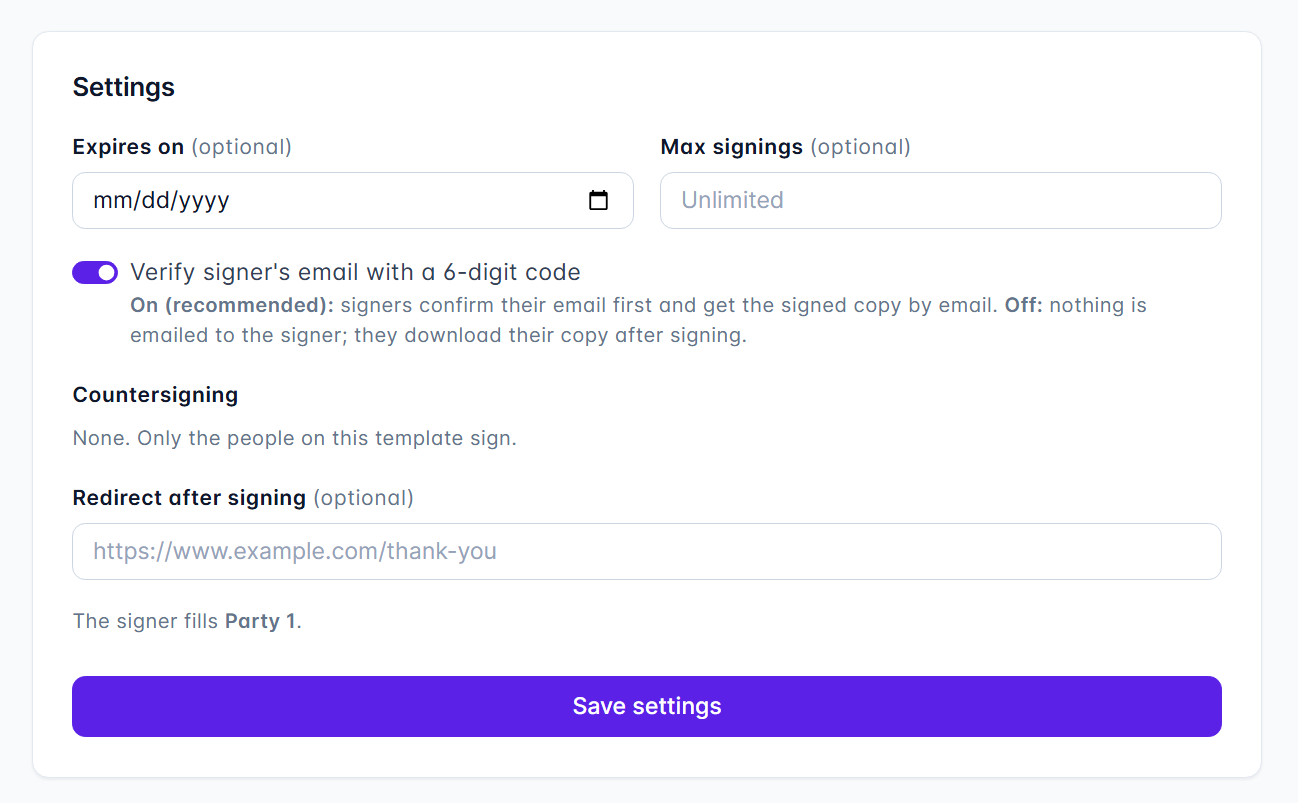
- Expires on (optional): the link stops working after this date.
- Max signings (optional): the link stops after this many people sign.
- Verify signer's email with a 6-digit code: On (recommended), signers confirm their email first and get the signed copy by email. Off, nothing is emailed to the signer and they download their copy after signing.
- Countersigning: if the template has a party for you ("Me"), choose Automatically, with my saved signature or Manually: email me to countersign each one. Automatic needs a saved signature in Settings.
- Other parties: if the template has more parties, enter their emails. Each one is emailed in order after the link signer finishes.
- Redirect after signing (optional, Individual and up): send signers to your own page when they finish.
What Signers See
Signers enter their name and email. With email verification on, they get a 6-digit code to confirm their address, then sign the document and get their signed copy by email.
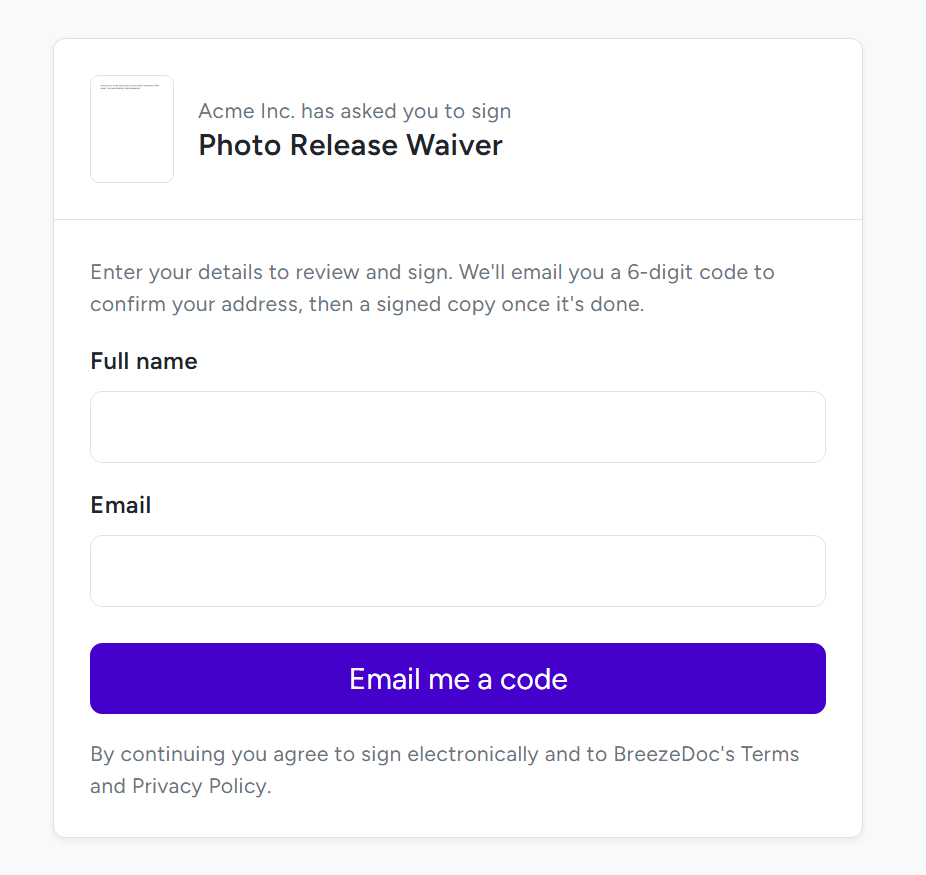
Every signing creates its own document. Find them under Documents. A signing only counts toward Max signings once the person signs.
How to Turn a Link Off
Open Signing links, click Set up link next to the template and turn off the Public link switch. Anyone who opens the link then sees a page not found. Turning a link off also frees a spot on your plan.
Troubleshooting
I can't turn the link on
- The template needs a signature field. Click Add a signature field, place it, and BreezeDoc brings you back.
- You reached your plan's limit of active links. Turn another link off, or upgrade.
People see a page not found
- The link is off, past its Expires on date, or reached Max signings. Check the settings on the link page.
The signer didn't get the code
- Ask them to check spam. The code works for 15 minutes, and they can request a new one on the same page.
Still stuck? Email support@breezedoc.com with the template name.
Frequently Asked Questions
Can I use public signing links on the Free Plan?
Yes, one link at a time. Individual has 10, and Agency and Pro are unlimited.
Does each signer get their own copy?
Yes. Every signing creates a separate document, and you see each one under Documents.
Can I change the template after the link is live?
Yes. People who open the link after your change sign the new version.
Need more help? Contact our support team at support@breezedoc.com - we are here to help!