
How to Turn a Deal PDF Into an Agreement With AI
Have a proposal, quote or deal PDF but no contract? Upload it and BreezeDoc drafts a ready-to-sign agreement in about 30 seconds, with a signature page for both of you. This article covers how to create it, check it and send it.
Overview
- Plan: every plan, the Free Plan included.
- What you need: your deal as a PDF, up to 5 MB. For example a proposal, quote or statement of work.
- Where: Documents → Create agreement from a deal PDF.
- What you get: an agreement with the deal's terms as clear bullet points, a Signatures page for both parties, and your original PDF attached at the end.
How to Create an Agreement From a Deal PDF
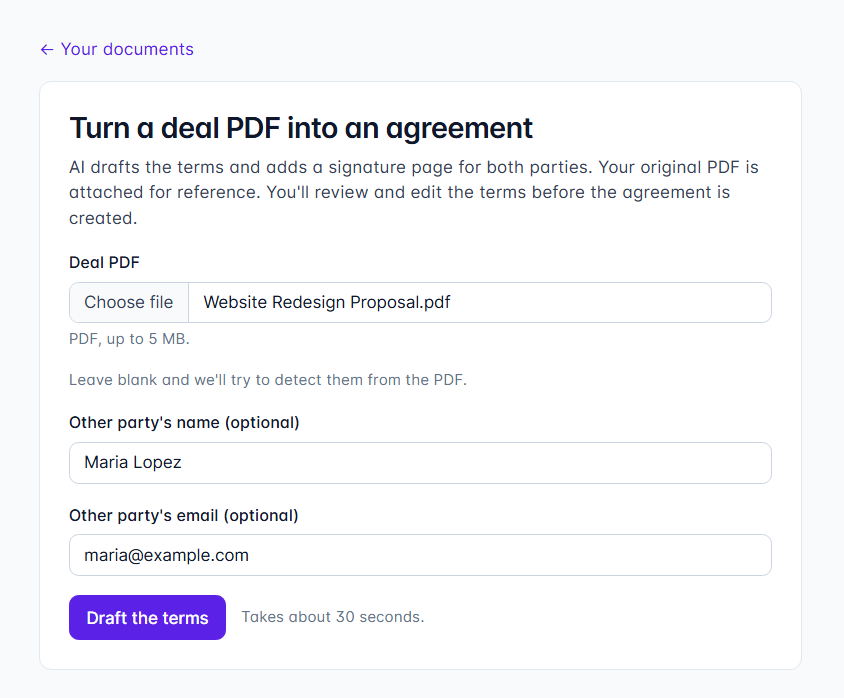
- Go to Documents and click Create agreement from a deal PDF.
- Under Deal PDF, choose your file.
- Add the Other party's name and email, or leave them blank and BreezeDoc picks them up from the PDF.
- Click Draft the terms. It takes about 30 seconds.
How to Check the Terms
BreezeDoc shows the drafted agreement before anything is created: the title, a short summary, both parties and the terms in sections.
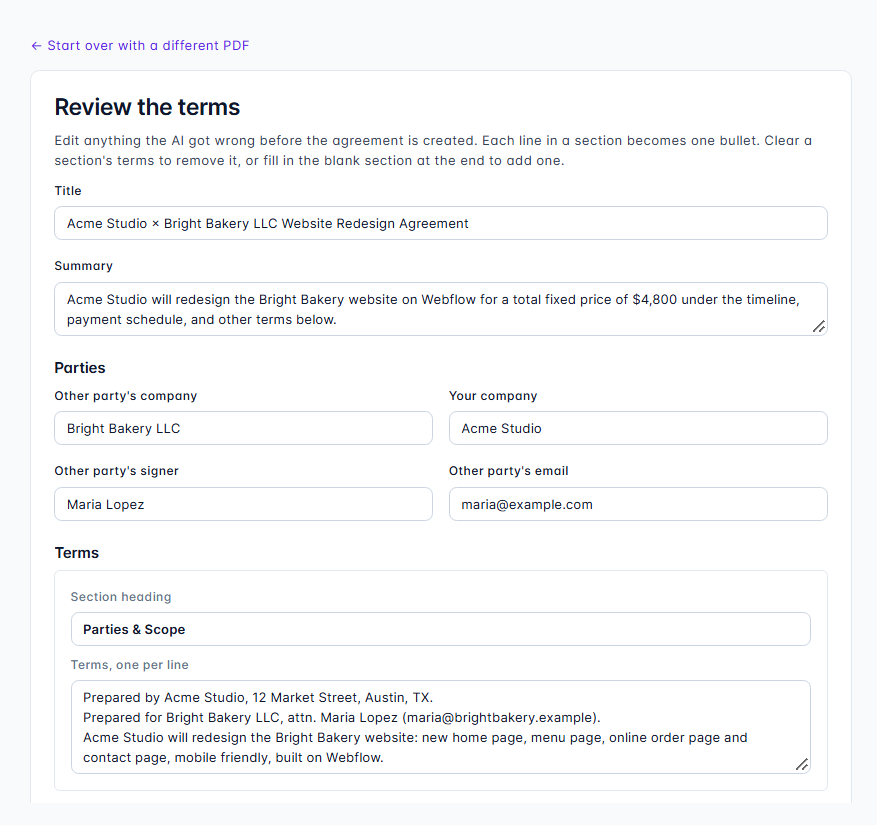
- Compare it with your PDF and fix anything the AI got wrong, such as a name, a date or an amount.
- Fill in Your company if it is empty.
- Each line in a section becomes one bullet point in the agreement.
When it looks right, click Create agreement.
What the Agreement Looks Like
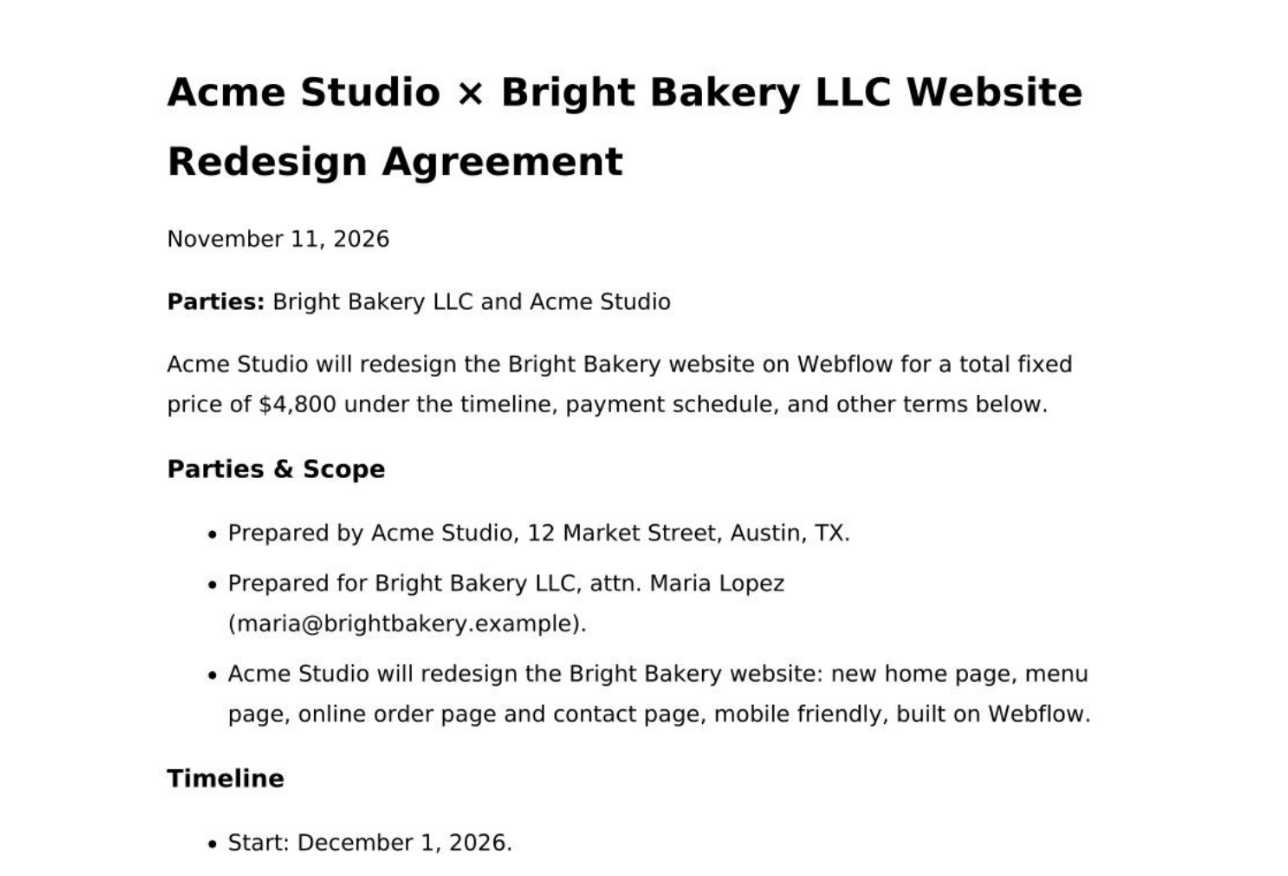
The agreement opens in the editor, ready to send. It starts with the title, the date, the parties and the summary, then the terms.
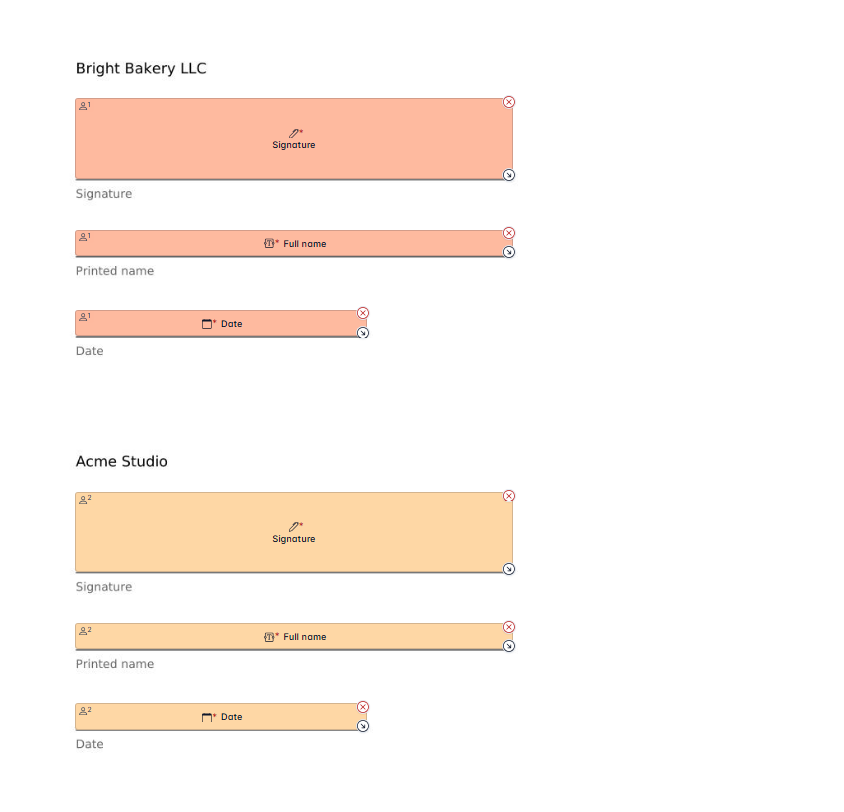
After the terms comes a Signatures page with a Signature, Printed name and Date for each party. Your original PDF is attached at the end.
How to Send It
- Check the Parties panel: the other party signs first, then you ("Me").
- Click Send to signers, check the names and emails, and send.
Your client is emailed first. Once they sign, BreezeDoc emails you to sign your part. See How to Sign Your Own Part and Pre-fill Fields for Your Client.
Troubleshooting
The agreement has a wrong name, date or amount
- Before you create it, fix it on the review page. After it's created, use Edit text in the editor to change the wording.
My PDF isn't accepted
- The file must be a PDF of 5 MB or less. Export your proposal as a PDF, or make it smaller, and try again.
I picked the wrong PDF
- Click Start over with a different PDF at the top of the review page. Nothing is created until you click Create agreement.
Still stuck? Email support@breezedoc.com with the name of your PDF.
Frequently Asked Questions
Which plans can create agreements with AI?
Every plan, the Free Plan included.
Is my original PDF included?
Yes. It is attached at the end of the agreement as Exhibit A.
Is anything sent before I check it?
No. You review the terms first, and the agreement is only sent when you click Send to signers.
Other Ways to Create a Document
- Write or paste a document to start from your own text.
- Autodetect fields to add fields to a PDF you already have.
Need more help? Contact our support team at support@breezedoc.com - we are here to help!