
How to Write or Paste a Document and Edit Its Text
No PDF? Write or paste your agreement straight into BreezeDoc and turn it into a document you can sign. You can also change the text of a document or template later, and one click brings back the last version. This feature is in beta.
Overview
- Plan: every plan.
- Where: Documents → Write or paste text for a new document, or Edit text at the top of the editor to change one you already have.
- Works for: documents and templates you haven't sent yet.
How to Write or Paste a New Document
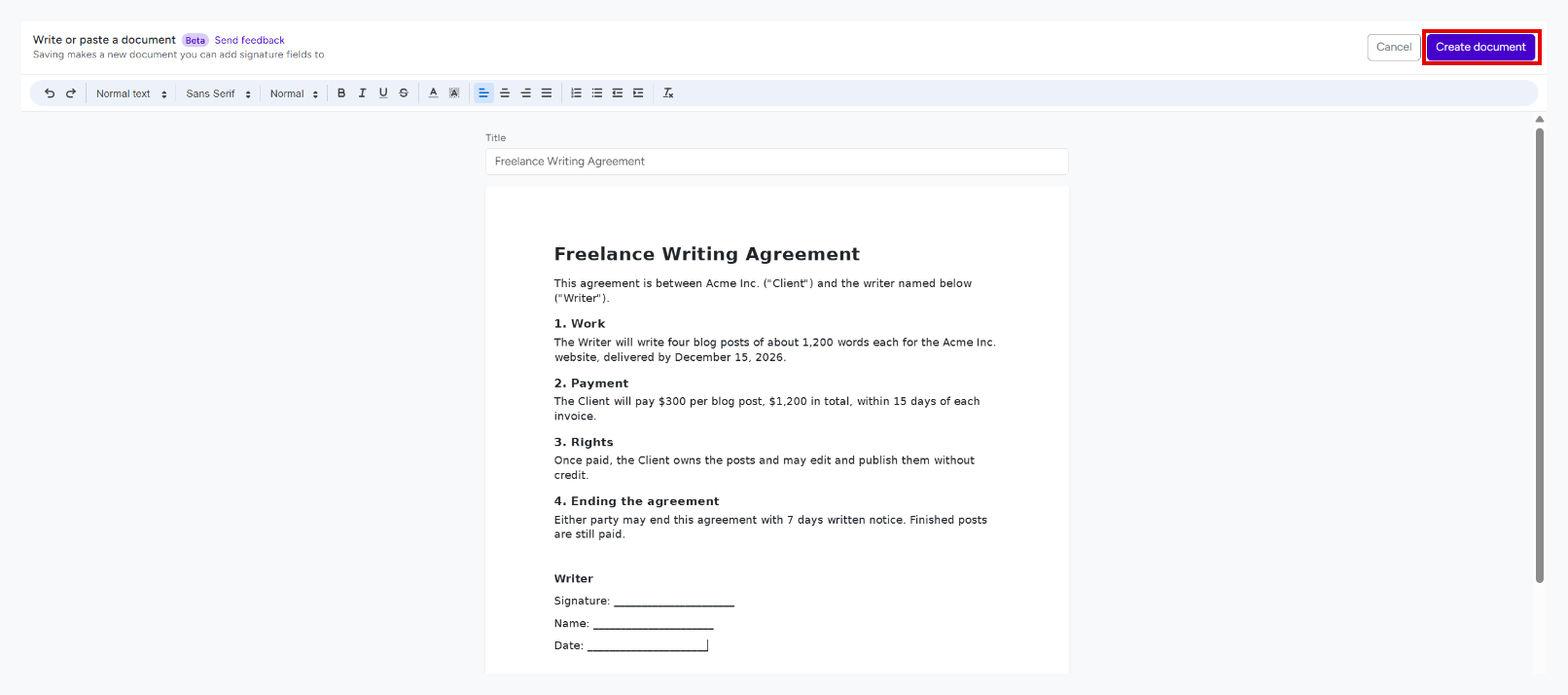
- Go to Documents and click Write or paste text.
- Type your agreement, or paste it from Word, Google Docs or an email. Use the toolbar for headings, bold, lists and alignment.
- Add a Title, or leave it blank and BreezeDoc uses your first line.
- Click Create document.
The document opens in the editor. Add your signers and their fields, then send it. See How to Add Fields to a Document.
Making a template instead? Open Templates and use Write or paste text there.
How to Change the Text Later
- Open the document in the editor and click Edit text at the top.
- Change the text.
- Click Save text.
Your fields stay where they are on the page. If the text moved a lot, check your signature fields after saving. BreezeDoc asks you to confirm them before you can send.
Editing the text of a PDF you uploaded
Edit text also works on most PDFs. BreezeDoc copies the text out of your PDF for you to change.
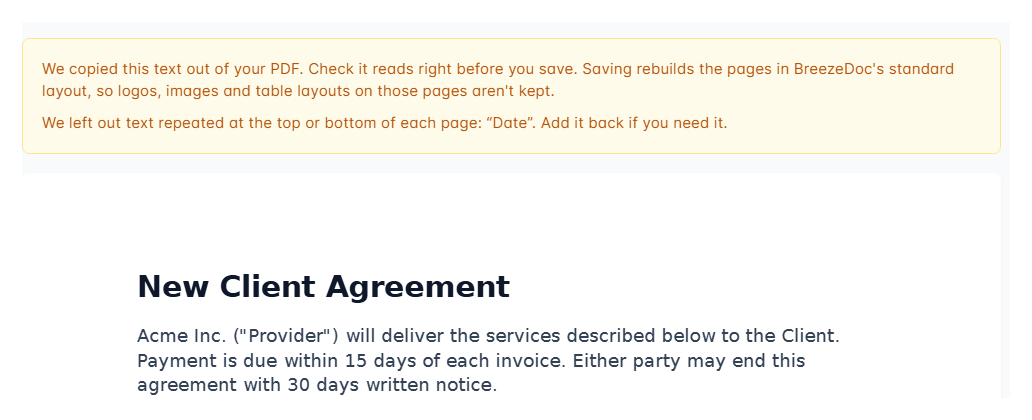
- Read it through before you save.
- Saving rebuilds those pages in BreezeDoc's standard layout, so logos, images and tables on them aren't kept.
- Scanned PDFs and two-column pages can't be edited this way.
How to Bring Back the Last Version
After you save, BreezeDoc shows Text saved. with an Undo button. Click Undo and your previous text is back, with its fields.
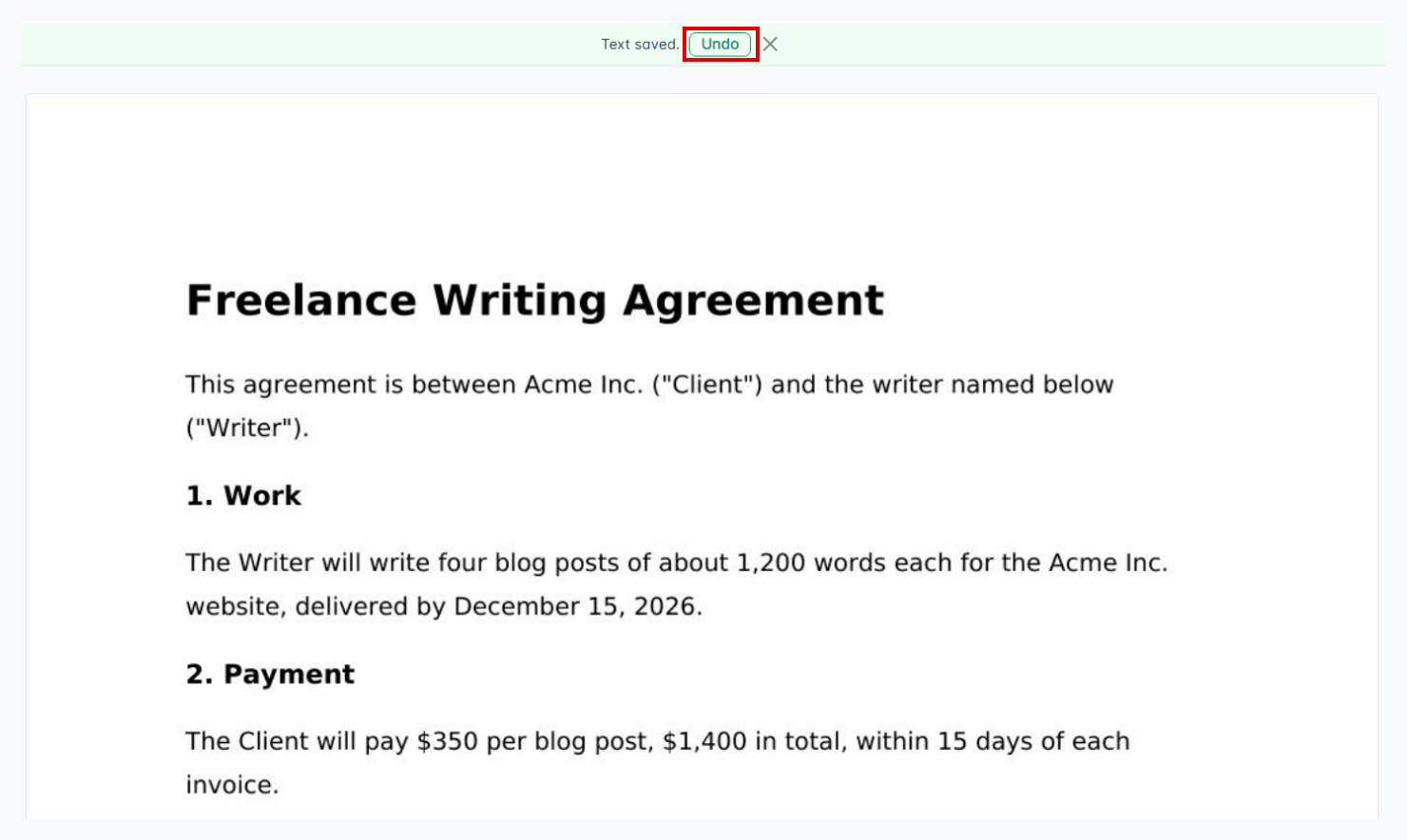
Closed the bar already? Open Edit text again and undo the last save from there. Each undo goes back one save.
Troubleshooting
I don't see Edit text
- The document was already sent or signed. Text can only be changed before you send.
- Only the person who owns the document can edit its text.
My PDF can't be edited
- BreezeDoc needs real text in the PDF. A scan or photo of a page has no text to copy. Upload a PDF exported from Word or Google Docs instead, or write the text with Write or paste text.
My fields don't line up after editing
- Drag them back into place, or click Undo to go back to the version before.
Still stuck? Email support@breezedoc.com with the document name.
Frequently Asked Questions
Can I paste from Word or Google Docs?
Yes. Basic formatting such as headings, bold and lists comes along. Use the toolbar to adjust anything else.
Can I change the text after I send?
No. Edit the text before you send, then send the final version.
Can I undo more than one change?
Yes. Each undo goes back one save.
Other Ways to Create a Document
- Turn a deal PDF into an agreement with AI.
- Autodetect fields to add fields to a PDF you already have.
Need more help? Contact our support team at support@breezedoc.com - we are here to help!