
How to Bulk Send a Document to a List of Signers
Send one template to a whole list of signers. Each person gets and signs their own copy, and you follow them all on one page.
Overview
- One signer per copy: every person on your list signs their own copy, alone. So your template can only have one signer, not a second person and not you. See How to Create and Use Templates.
- People per batch: Free: 19. Individual: 100. Agency and Pro: 500.
- Where: Bulk send in the top menu.
How to Bulk Send a Document
- Click Bulk send in the top menu.
- Under Pick a template, click Bulk send next to your template. No template yet? Upload a file, add the signer's fields, and BreezeDoc brings you back here.
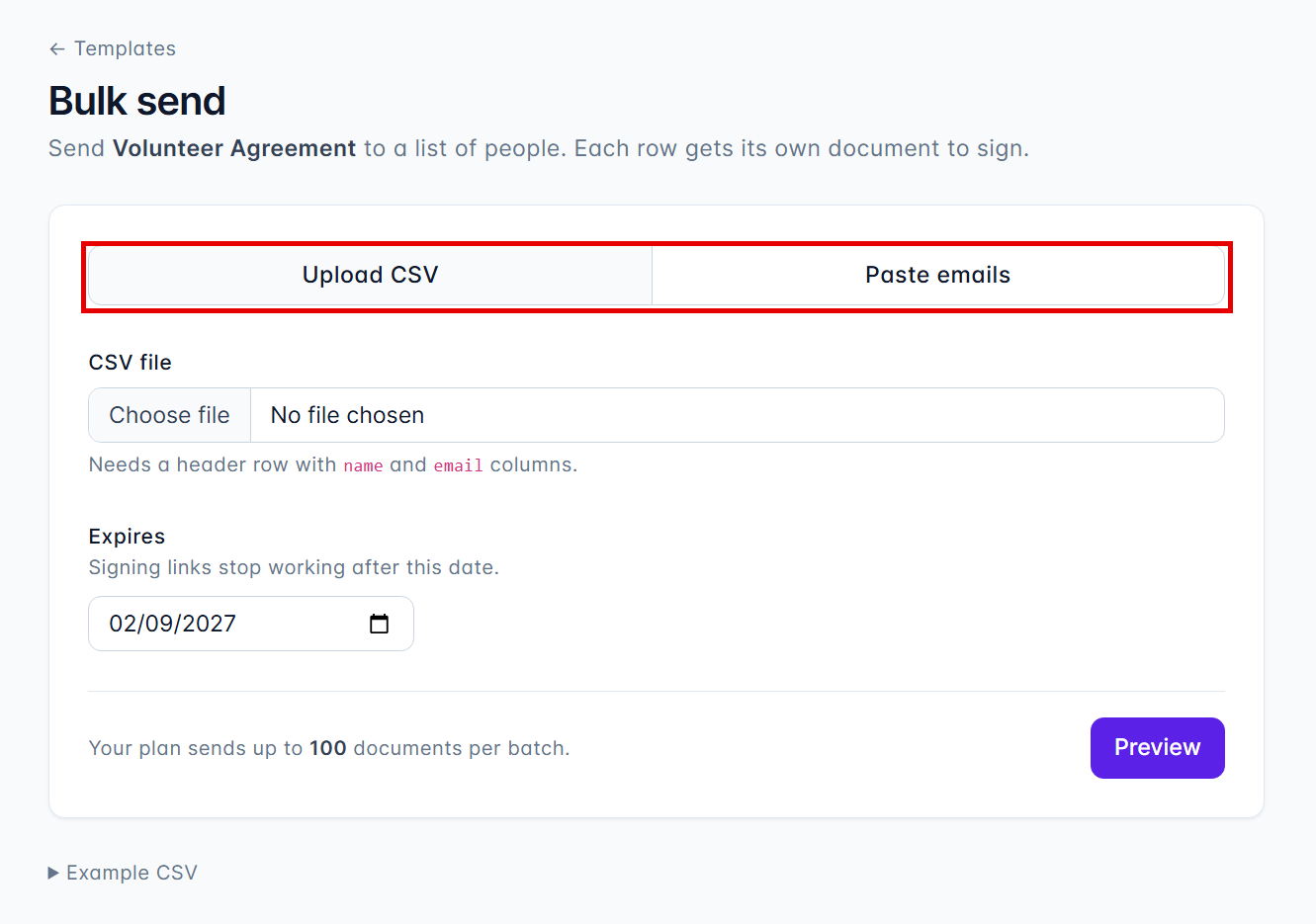
- Choose Upload CSV or Paste emails and add your list.
- Check the Expires date. Signing links stop working after it (90 days by default).
- Click Preview.
What goes in the CSV
- A header row with
nameandemail, then one person per row. Click Example CSV on the page for a sample. - To fill in a field for each person, add a column named after that field's label. For example, a column
Companyfills the field labelled Company. - The file must be a .csv under 2 MB.
Or paste your list
Put one person per line, as Jane Doe, jane@example.com, Jane Doe <jane@example.com>, or just the email.
Check the Preview, Then Send
The preview shows how many documents will go out, which rows are skipped, and the first documents filled in for real people.
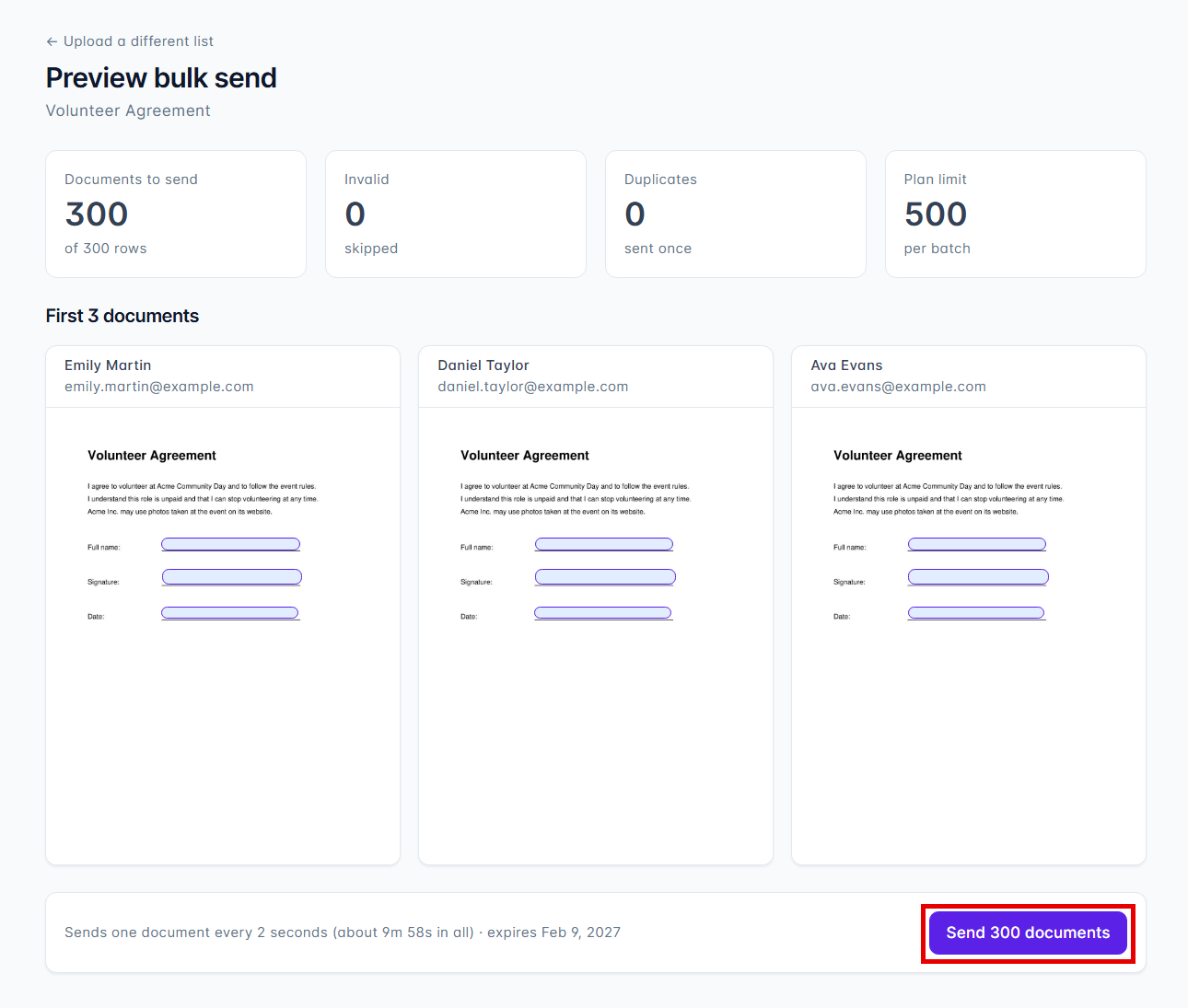
- Invalid: rows with a missing or wrong email are skipped. Open Rows that won't be sent to see why.
- Duplicates: the same email twice gets one document.
Click Send. BreezeDoc sends one document every 2 seconds, so 300 people take about 10 minutes. You can close the page while it sends.
How to Follow a Bulk Send
After you send, BreezeDoc opens the batch page. It shows how many were sent, viewed, signed and bounced, and a row for every signer.
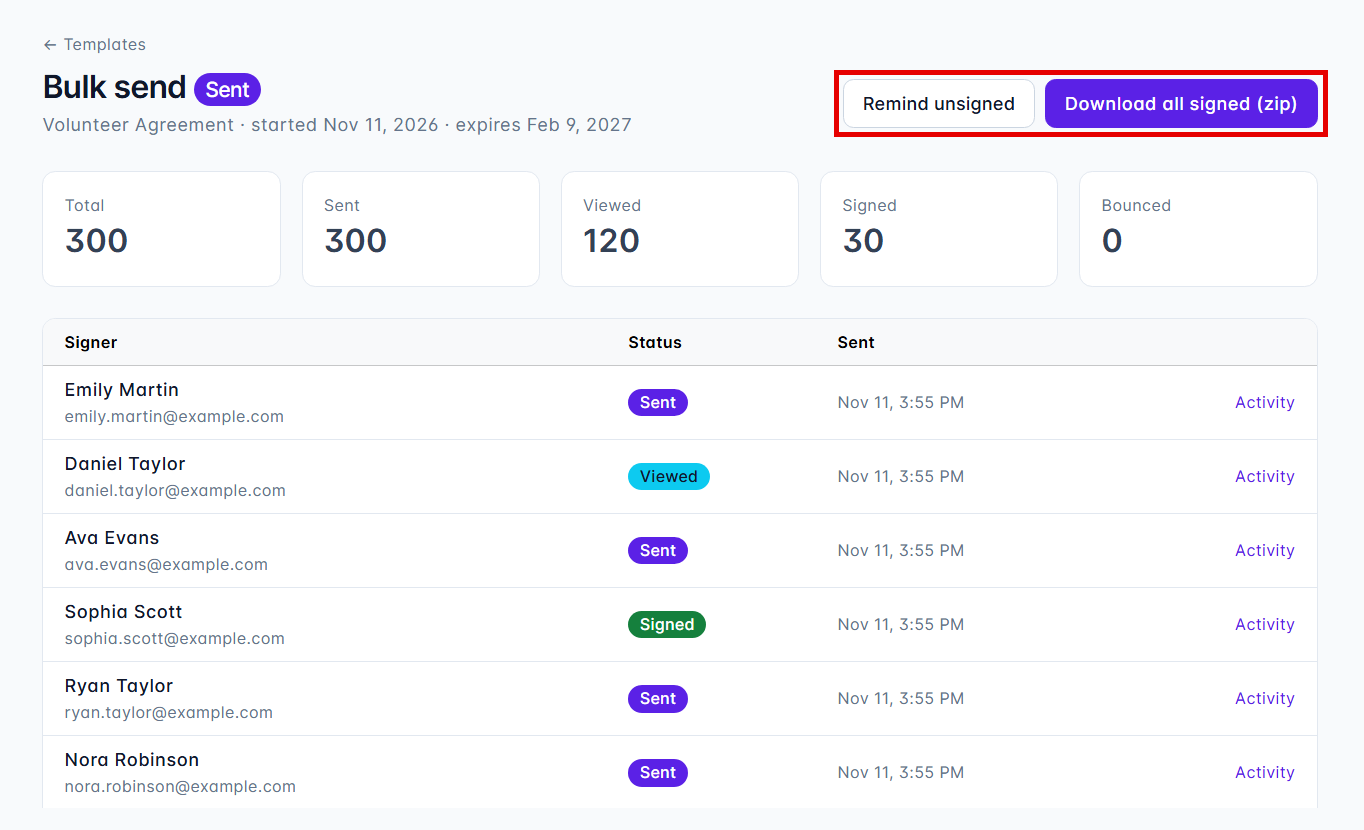
- Remind unsigned: emails everyone who hasn't signed yet. You can do it once every 24 hours.
- Download all signed (zip): all signed copies in one zip. Above 25 signed documents, BreezeDoc emails you a download link instead.
- Activity: the full history of one signer's copy.
How to find a bulk send later
- Click Templates in the top menu.
- Click Bulk send on the template you used.
- Scroll down to Earlier bulk sends of this template and click the date of your batch.
Each copy also shows as its own document on your Documents page.
Troubleshooting
"Bulk send works with single-signer templates"
- Your template has a second signer, or a spot for you to sign. Click Edit template and leave only one signer.
"The CSV needs a header row with name and email columns"
- Add a first row with the words name and email, then save the file as .csv.
"Your plan can bulk send up to ... documents at once"
- Split the list into smaller batches, or upgrade for a higher limit.
I can't find a bulk send I made
- Open Templates, click Bulk send on the template you used, then scroll down to Earlier bulk sends of this template.
Still stuck? Email support@breezedoc.com with the template name.
Frequently Asked Questions
Can I bulk send on the Free Plan?
Yes, up to 19 people per batch. Individual sends to 100, and Agency and Pro to 500.
Does each person get their own copy?
Yes. Every row gets a separate document, and nobody sees the others.
Can I bulk send a document that two people sign?
No. Bulk send works with one signer per document. For a document anyone can open and sign, use a public signing link.
Can I countersign every copy?
No. Bulk send has one signer per copy. To sign a document together with someone, send it the normal way and add yourself with Add me. See How to Sign Your Own Part and Pre-fill Fields for Your Client.
Need more help? Contact our support team at support@breezedoc.com - we are here to help!